Contents
1. Project Management & Control Module
1.1 Child-to-Parent Progress Roll-Up for Project ExecutionsPMC Admins can now configure child projects to automatically roll their progress up to a parent project using weighted percentages. Each child project is assigned a weighting, and the parent's progress is calculated automatically based on those weights — no manual updates needed.
This delivers a clearer, real-time picture of overall programme delivery, giving project managers and administrators confidence that parent-level progress always reflects what is actually happening across all child projects.
Enabling the Feature
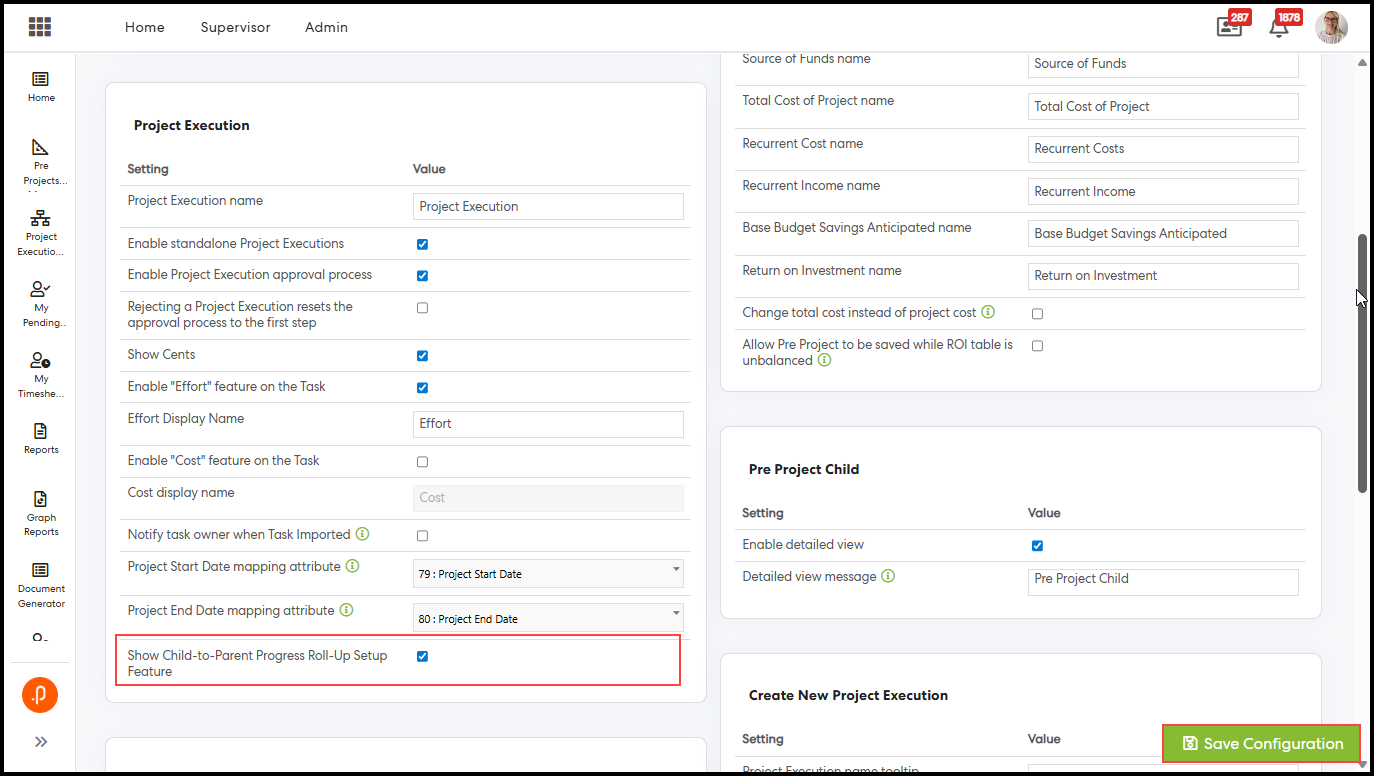
A PMC Admin must first enable this feature from the System Configuration page.
- Navigate to System > Configuration > Project Execution.
- Locate 'Show Child-to-Parent Progress Roll-Up Setup Feature' and check the checkbox.
- Click Save Configurations.
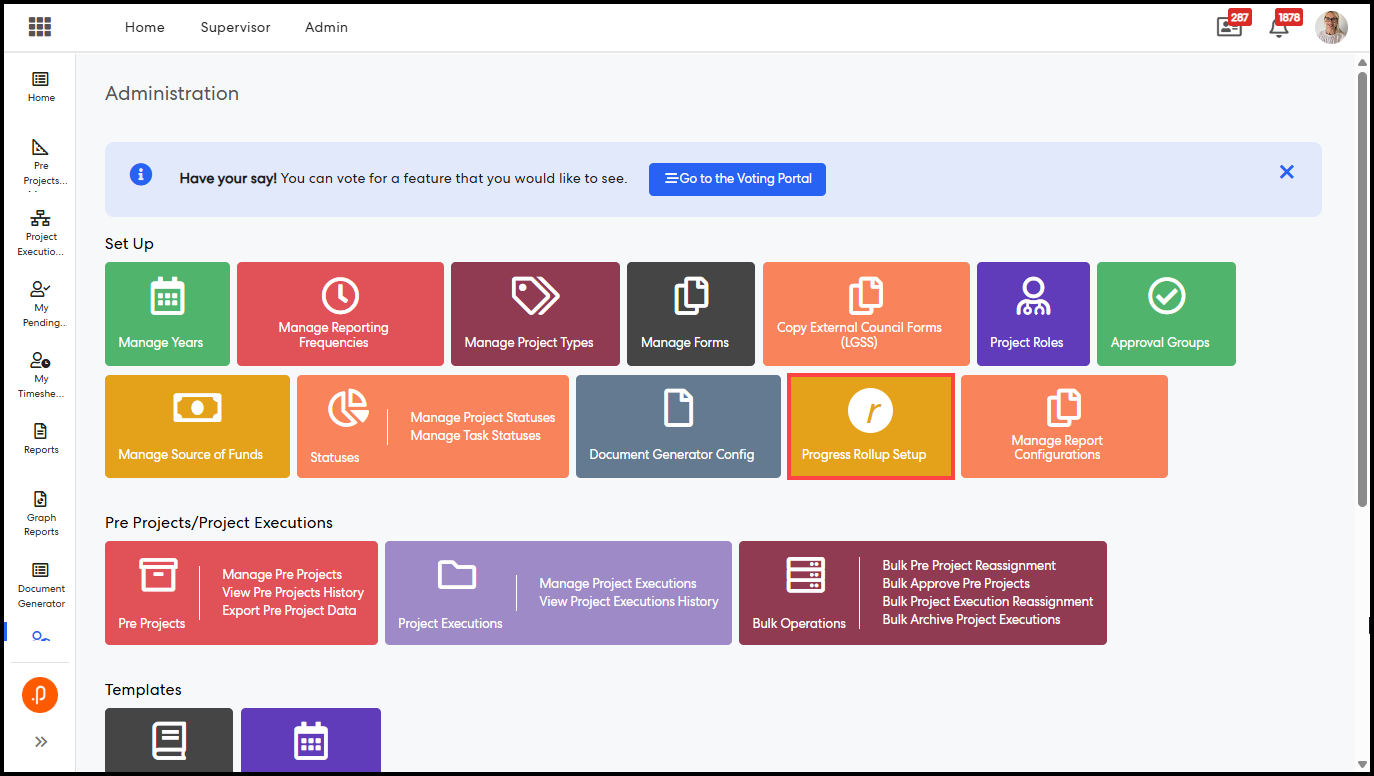
Once enabled, a new Progress Rollup Setup tile appears under the Set Up section of the Administration page.
Setting Up Child-to-Parent Weightings
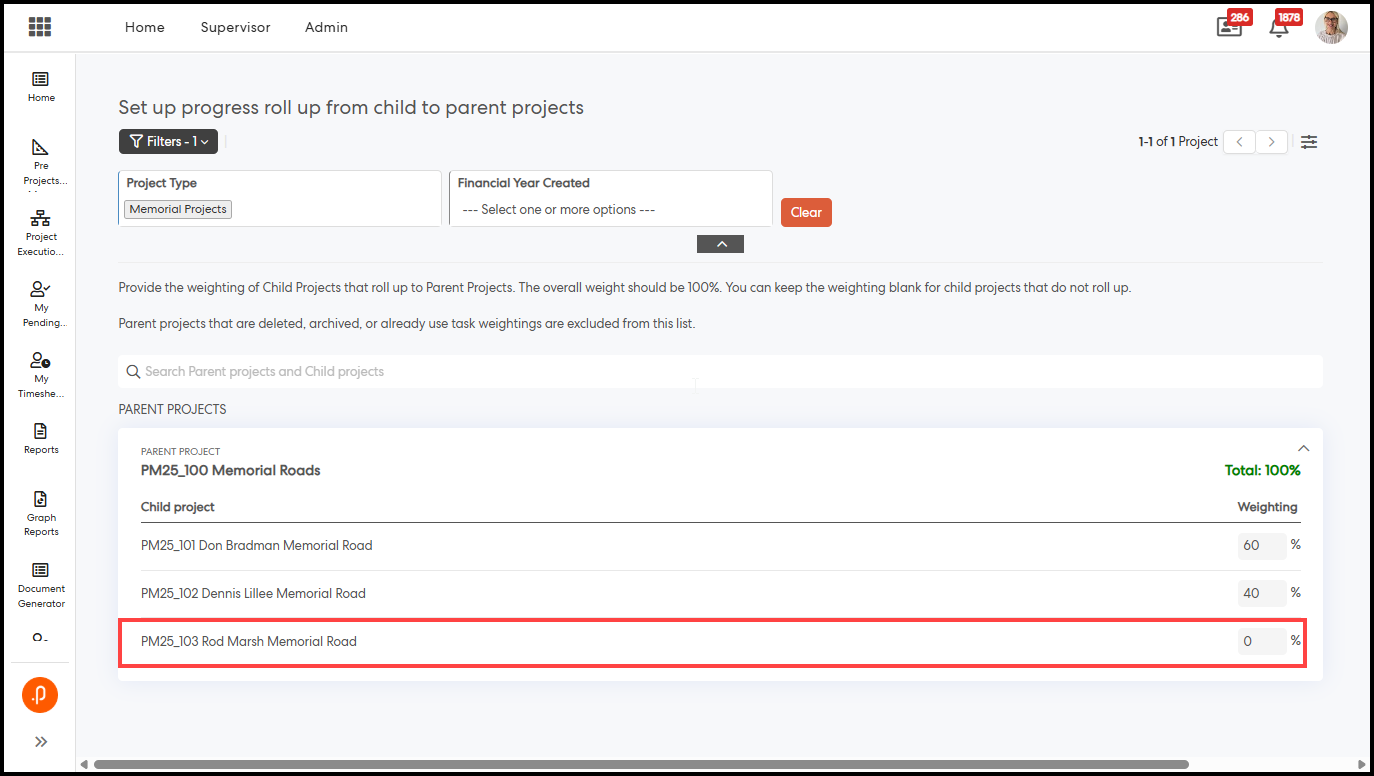
Click the Progress Rollup Setup tile to open the setup page.
Filtering the Project List
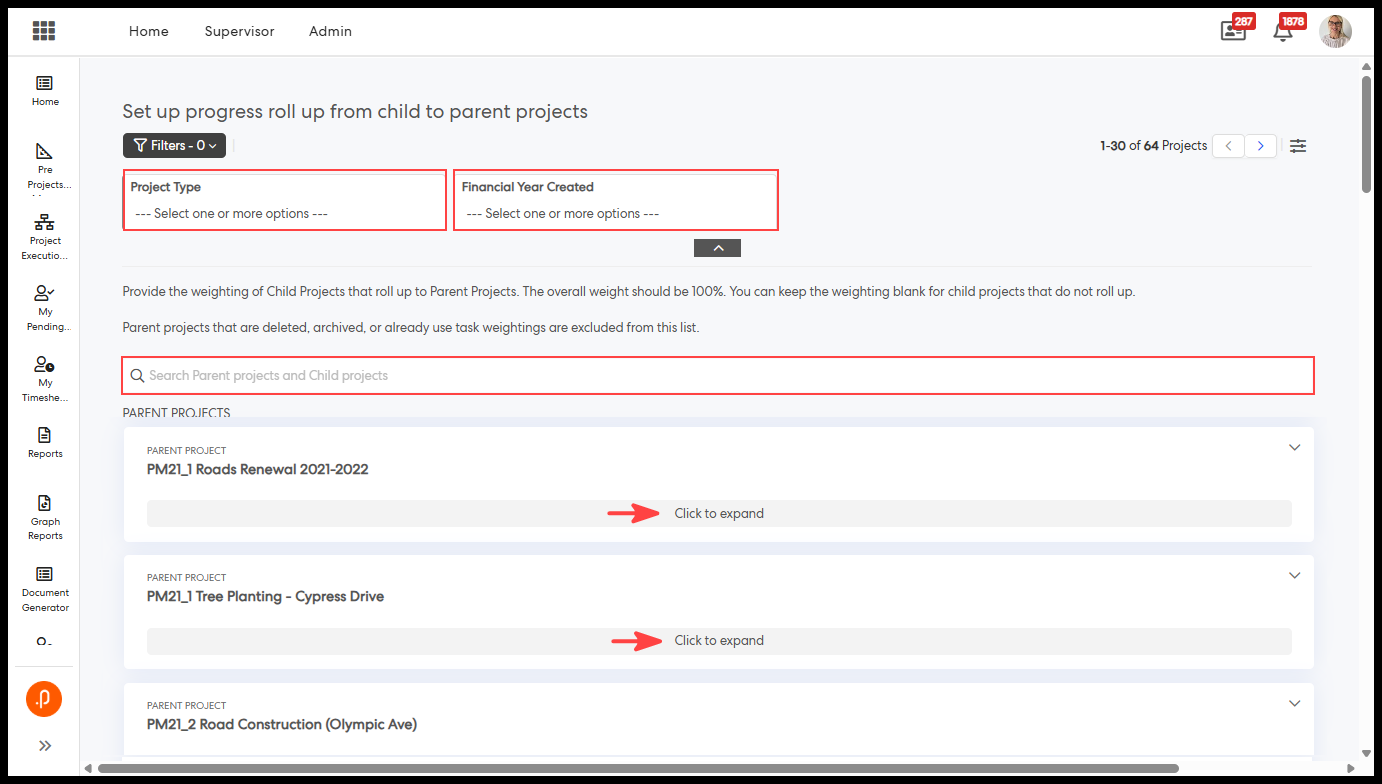
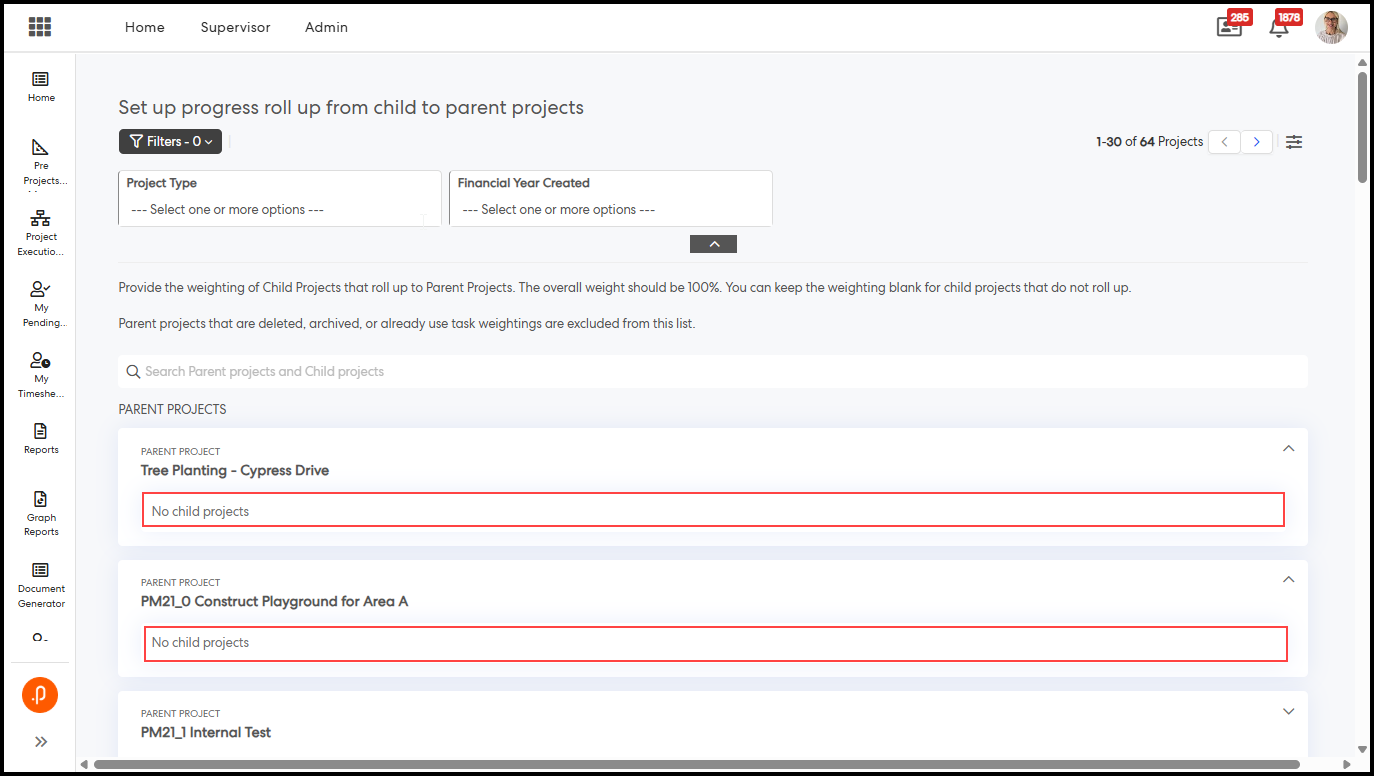
Use the filters at the top to narrow down the list before making changes.
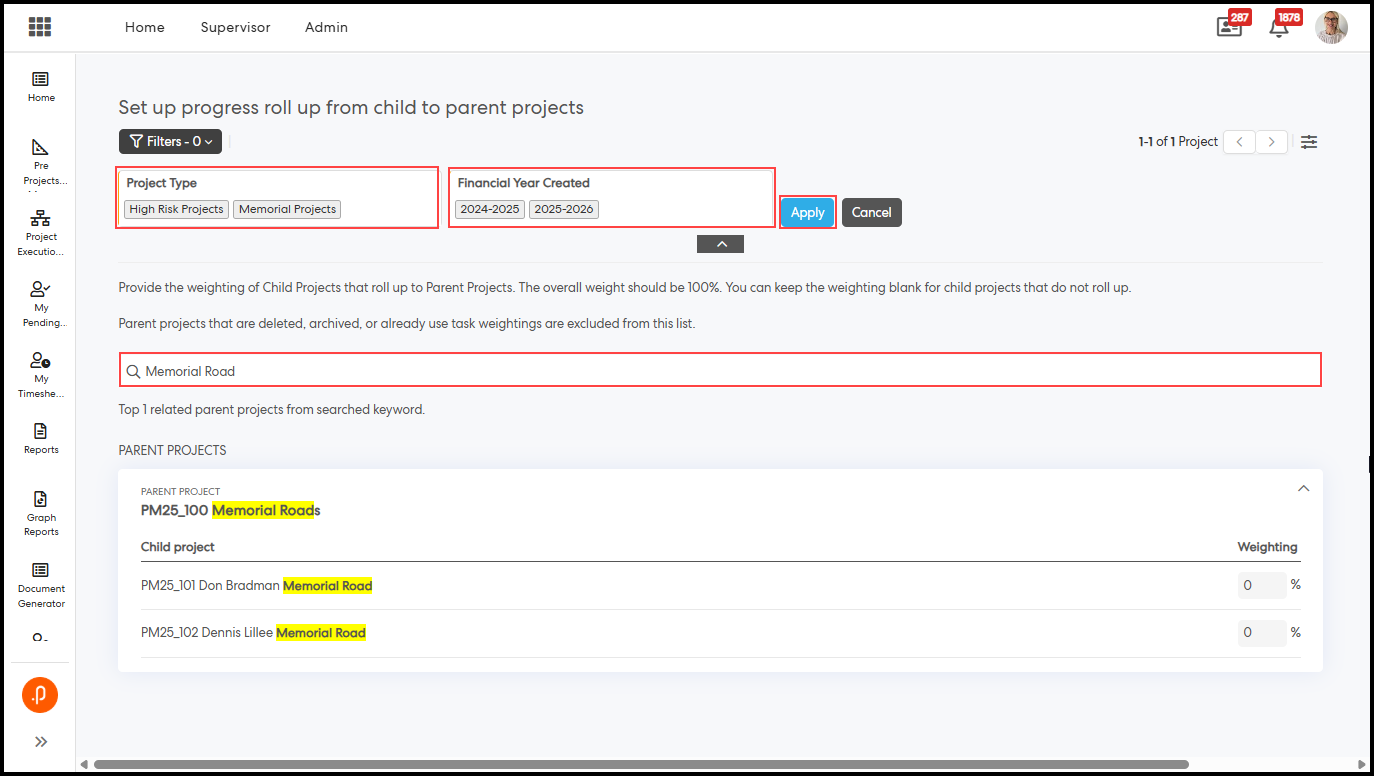
- Financial Year Created — multi-select; range based on your Manage Years configuration.
- Project Type — filters parent projects by type.
- Search bar — type any project name to find it instantly; matching text highlights in yellow.
Assigning Weightings
Parent projects load in a collapsed state. Click a row or 'Click to expand' to reveal child projects.
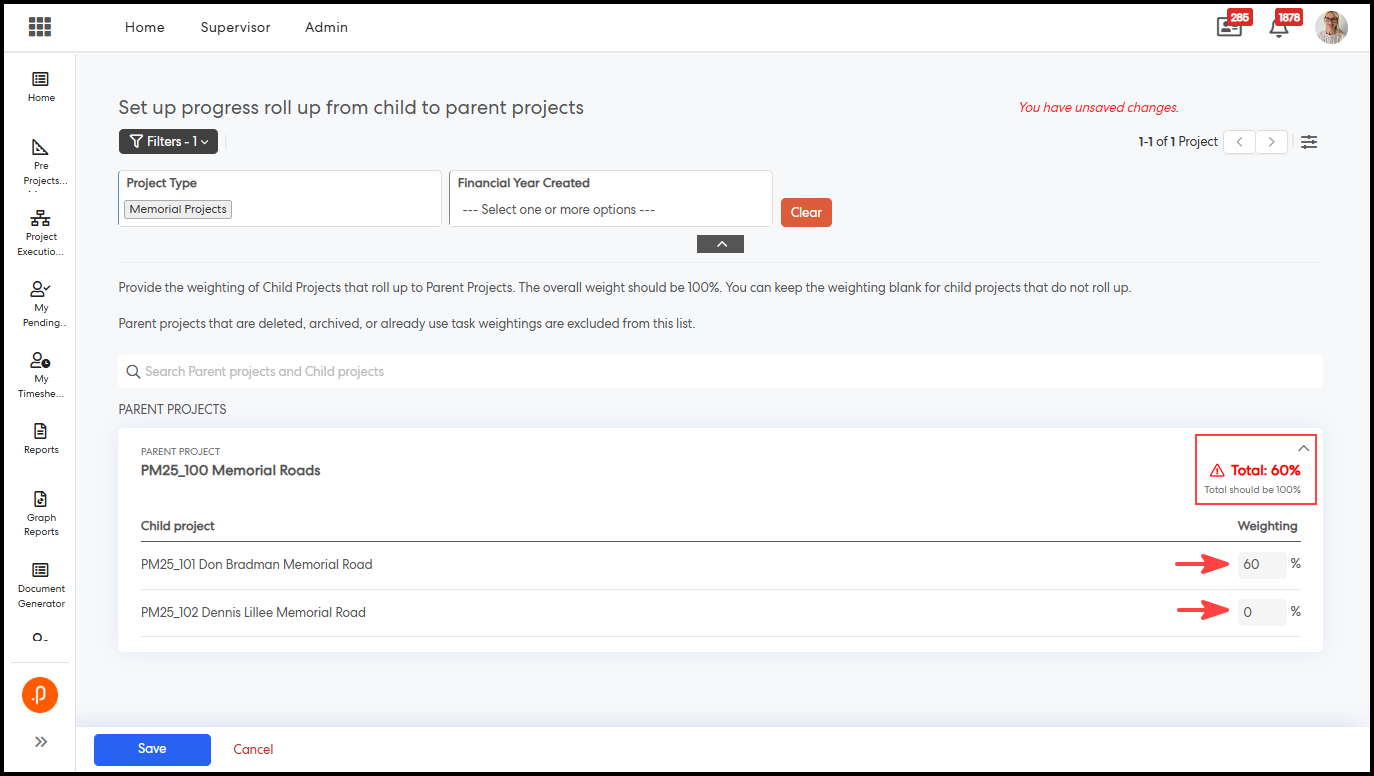
- Enter a whole number (0–100) in the % field next to each child project.
- The total weighting for the parent updates in real time as you type.
- Parents with no child projects show the message 'No child projects.'
Weighting Validation
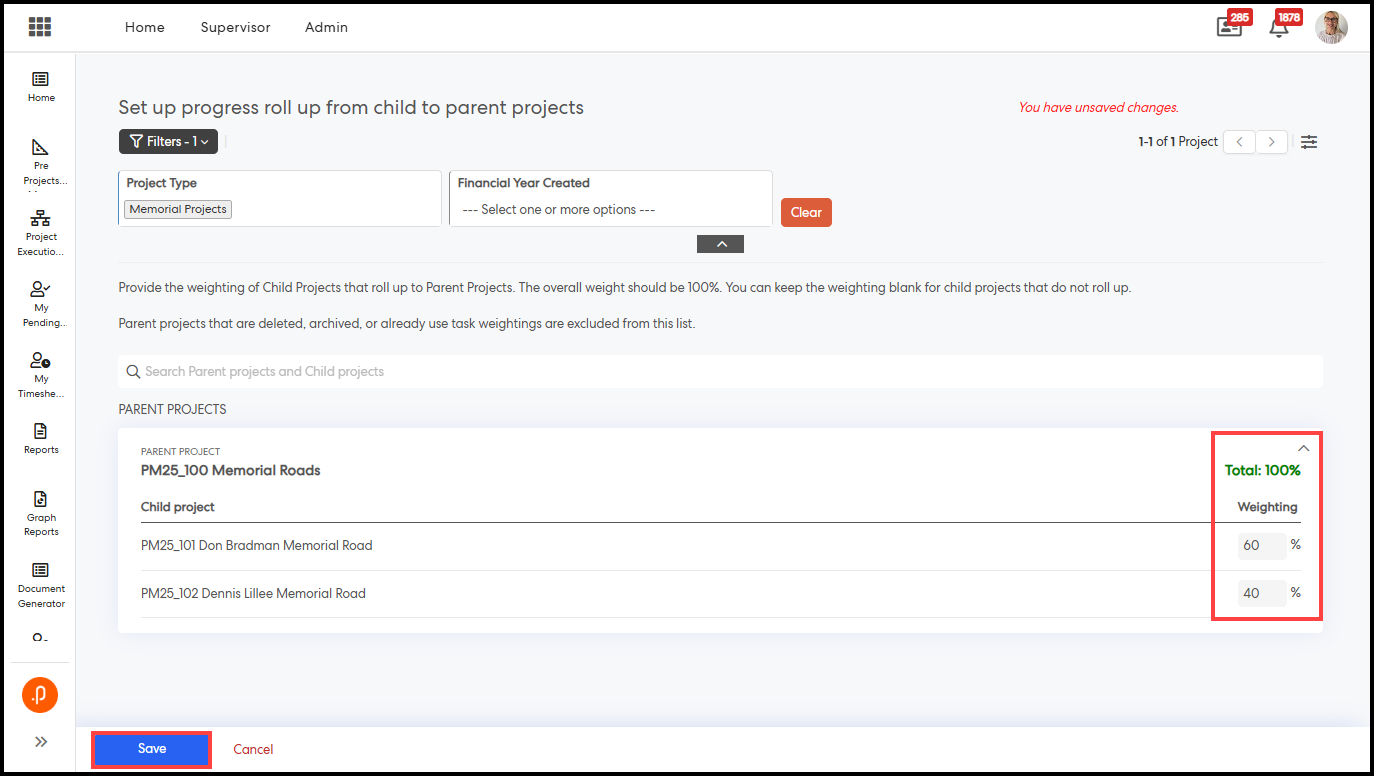
The total weighting per parent must be 0% or 100% to save successfully.
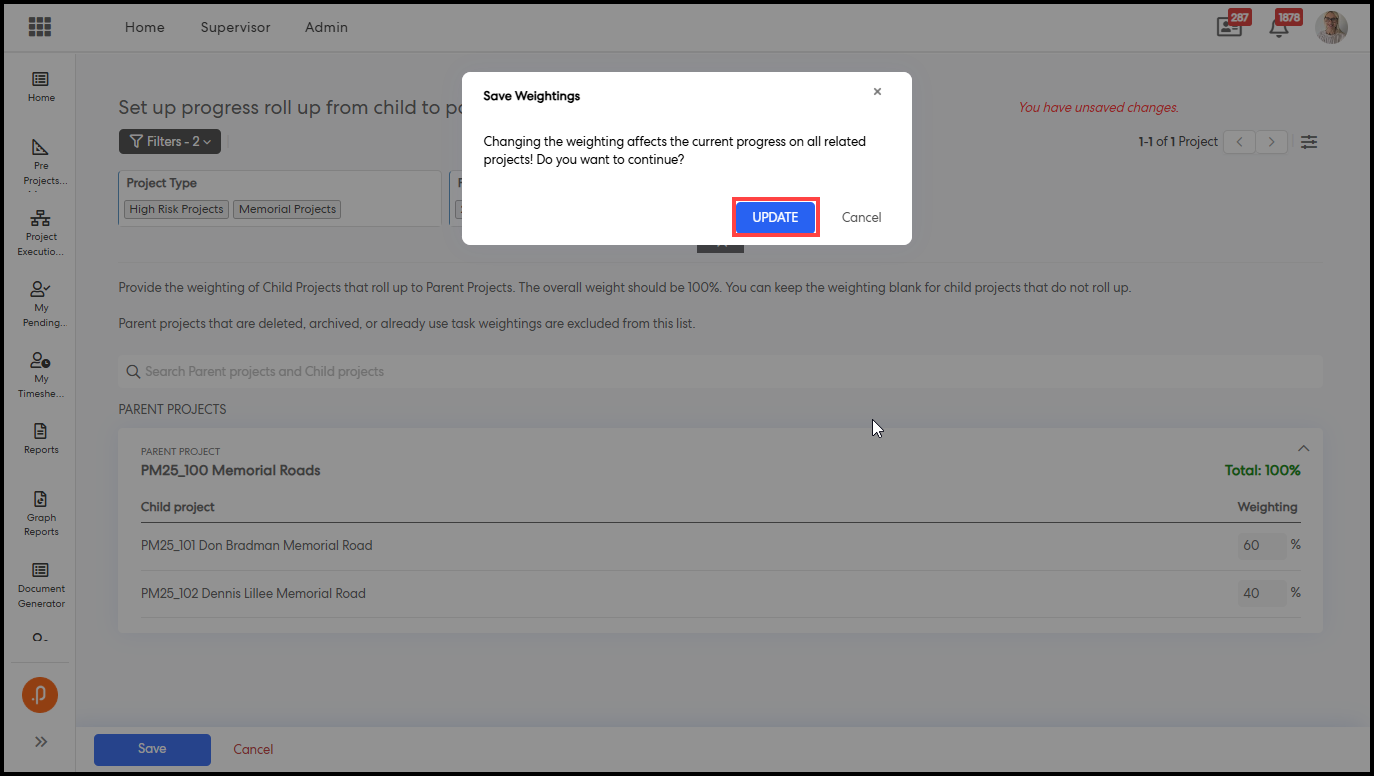
- 100% — shown in green in the parent header. Ready to save.
- 0% — no indicator shown. Child projects will not roll up progress.
- Any other total — shown in red with 'Total should be 100%.' Saving is blocked until corrected.
Saving Your Configuration
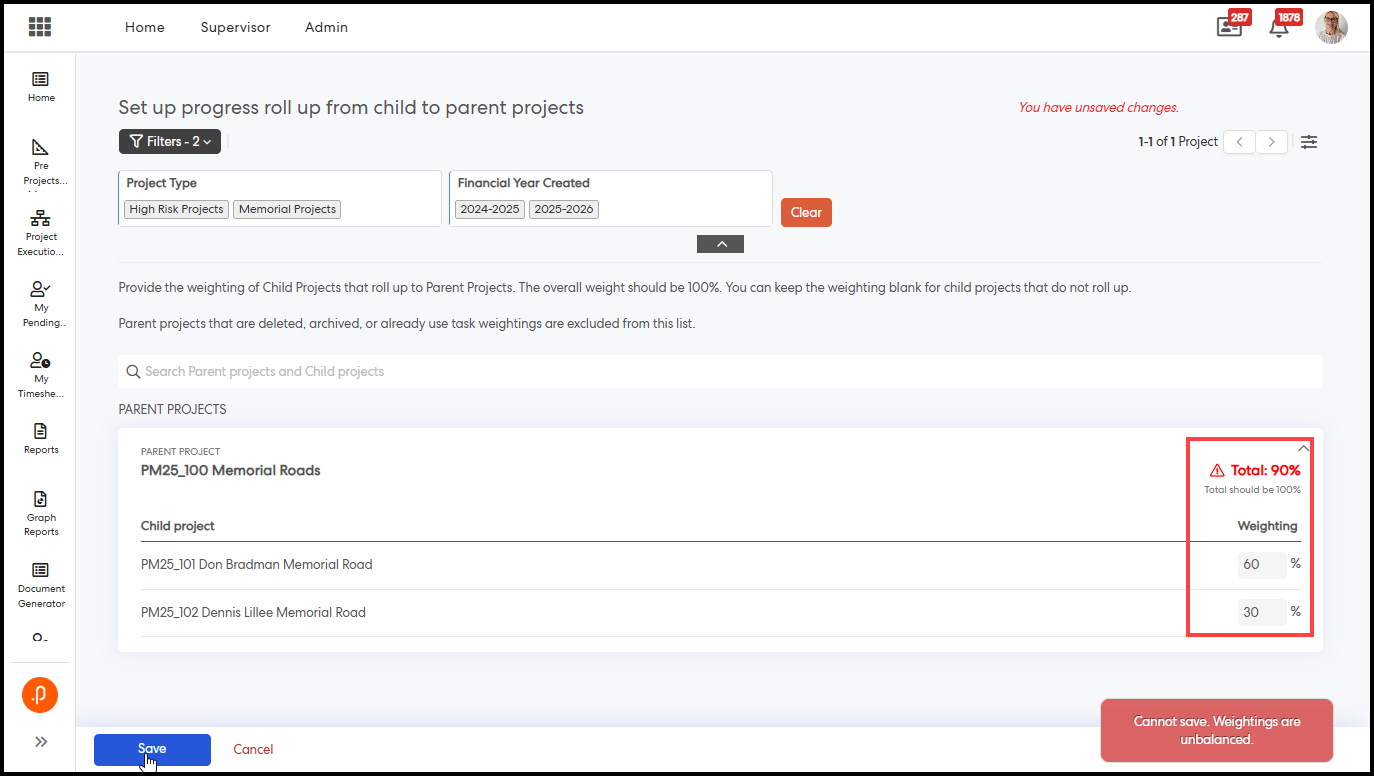
The Save and Cancel buttons appear only after you make a change.
- Unbalanced weightings: a red error bar reads 'Cannot save. Weightings are unbalanced.'
- All weightings valid: a confirmation modal appears — click Update to confirm.
- A green 'Successfully Saved' message confirms the save.
- Click Cancel to discard all unsaved changes.
Viewing Rolled-Up Progress on a Project
Once weightings are saved, the parent project's progress is calculated automatically. The manual progress slider is hidden for parents with a 100% total weighting.
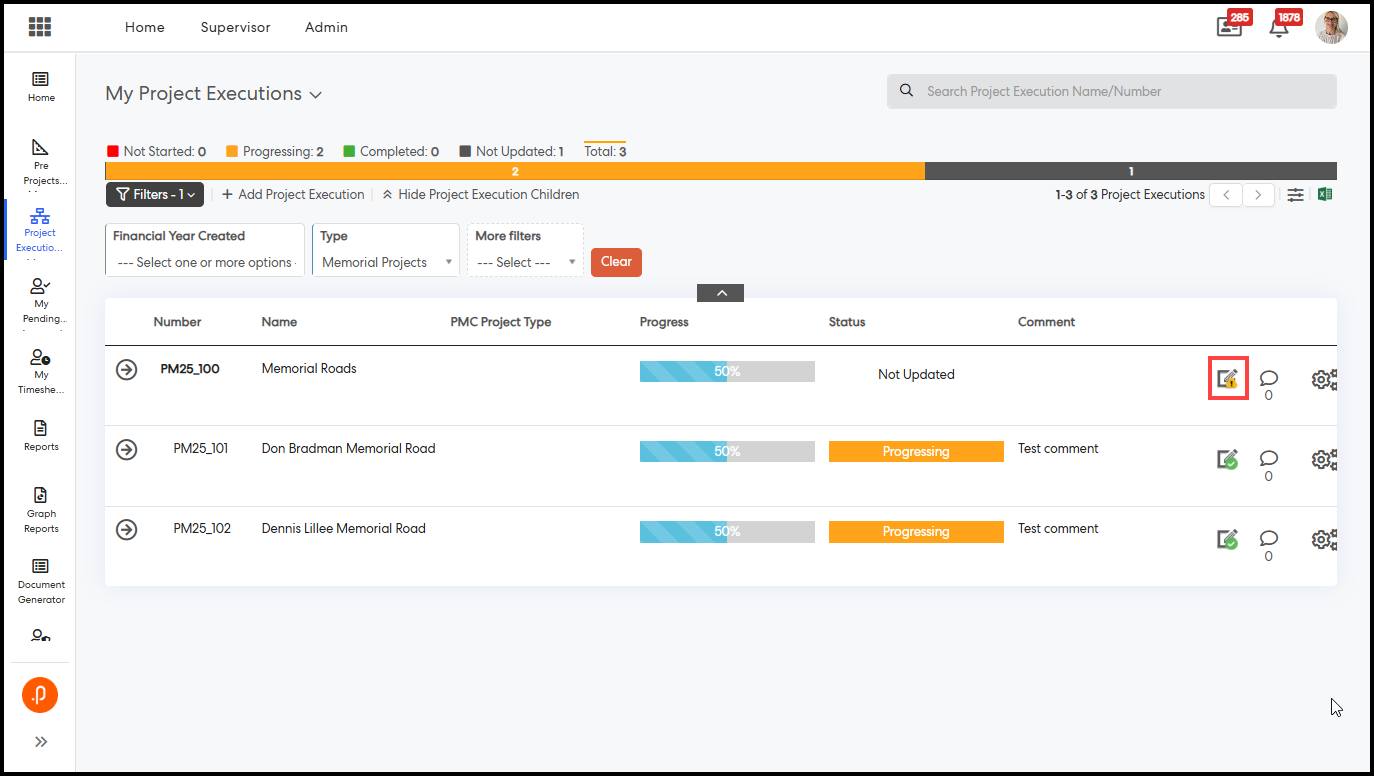
- Open the project's Update popup from any location where the update icon is available (e.g., Project Executions, Portfolio, Dashboards).
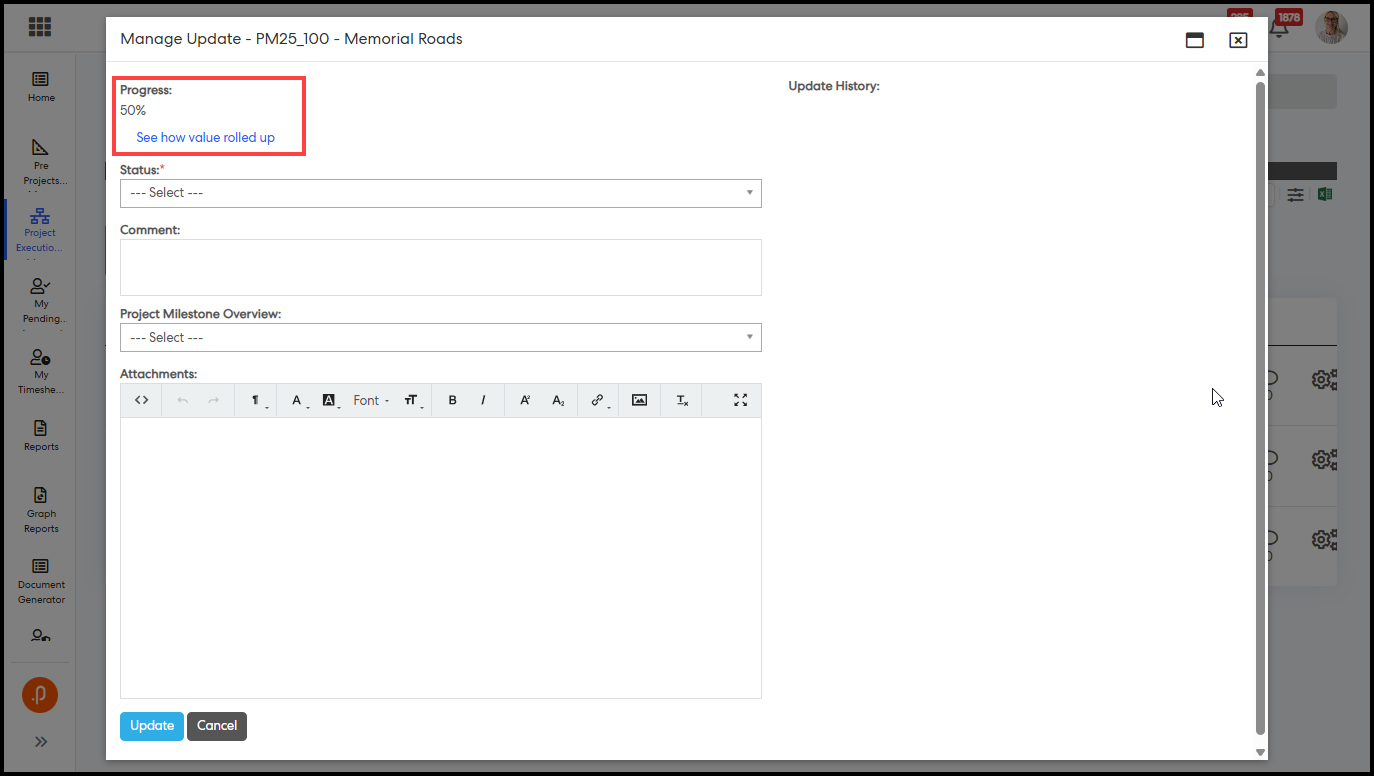
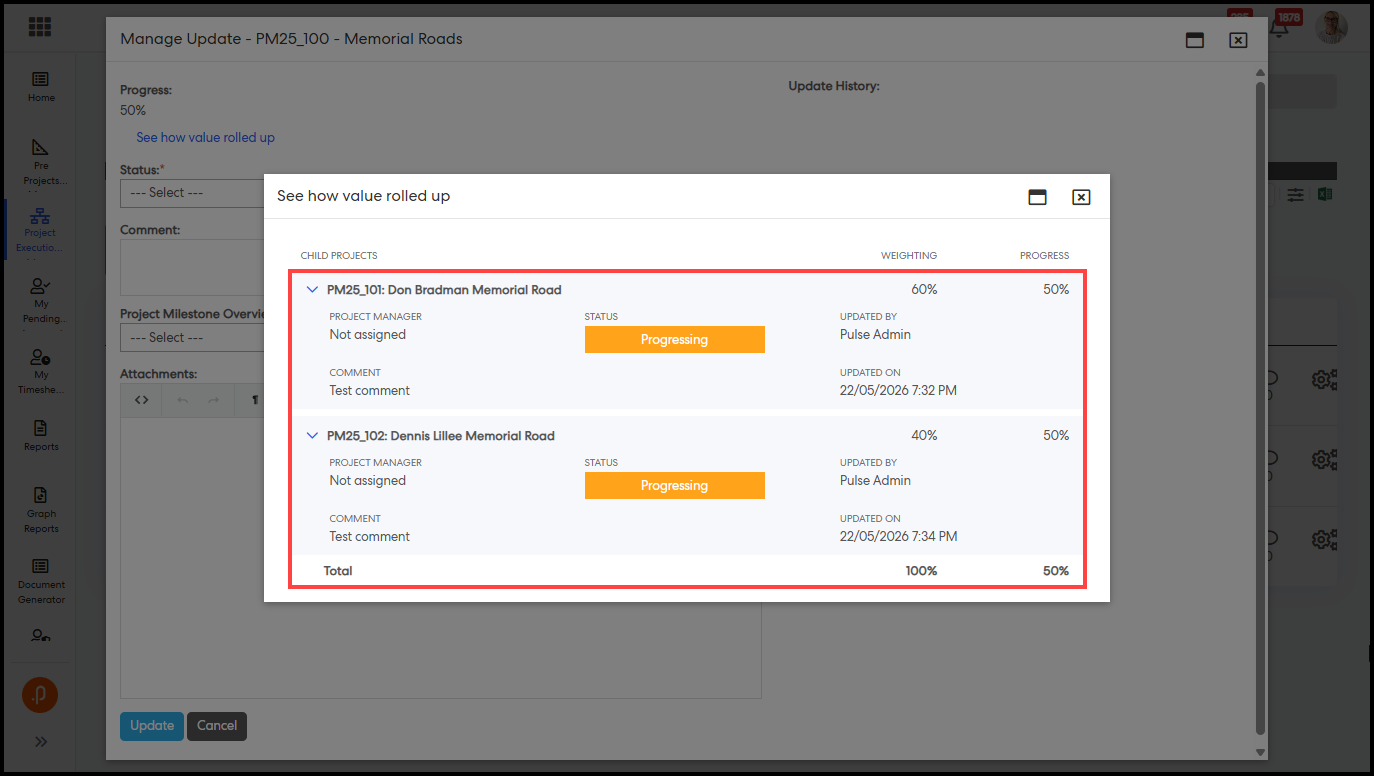
- The calculated progress value is shown at the top of the popup.
- Click the 'See how value rolled up' link to view the full breakdown.
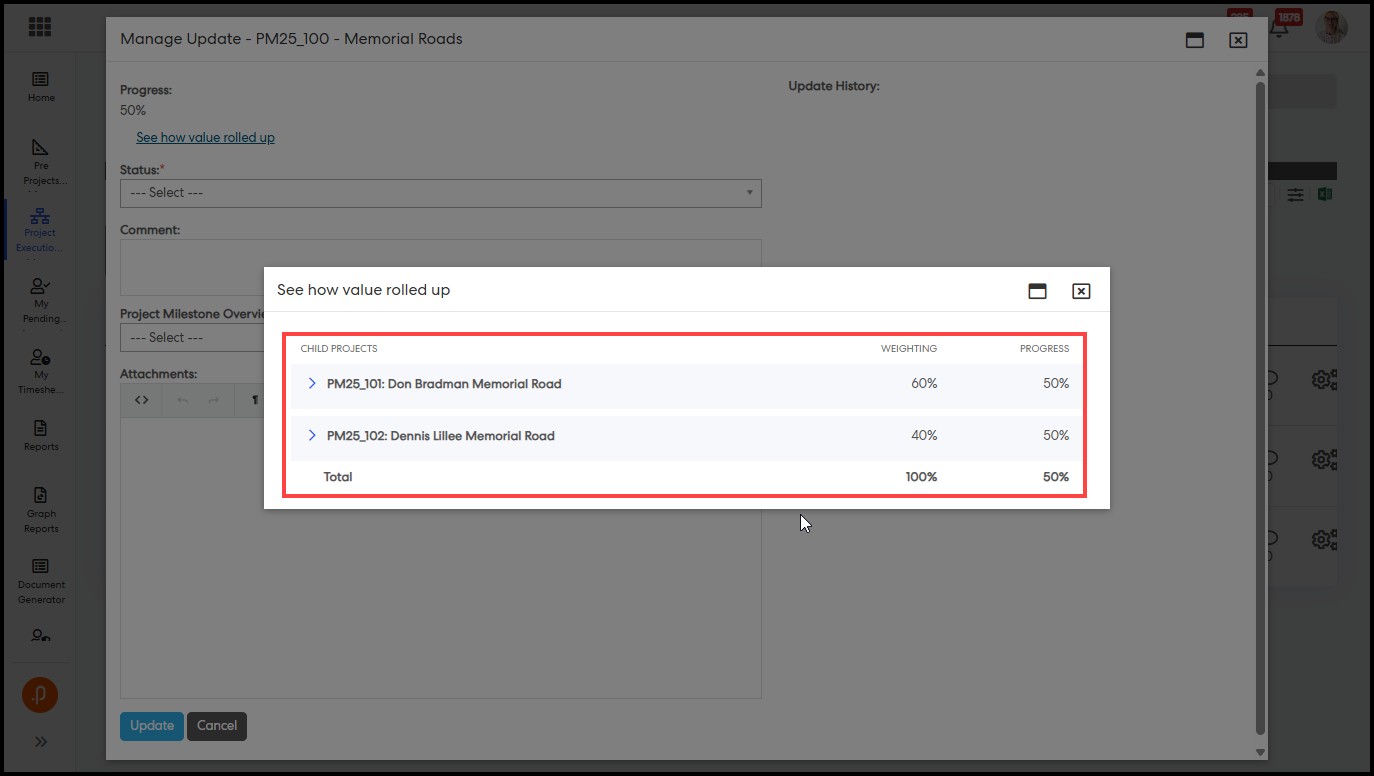
The breakdown popup lists all child projects with their weighting and progress, plus a total row at the bottom. Expand any child row for full details.
Restrictions and System Behaviour
The following rules apply to ensure data integrity across the module.
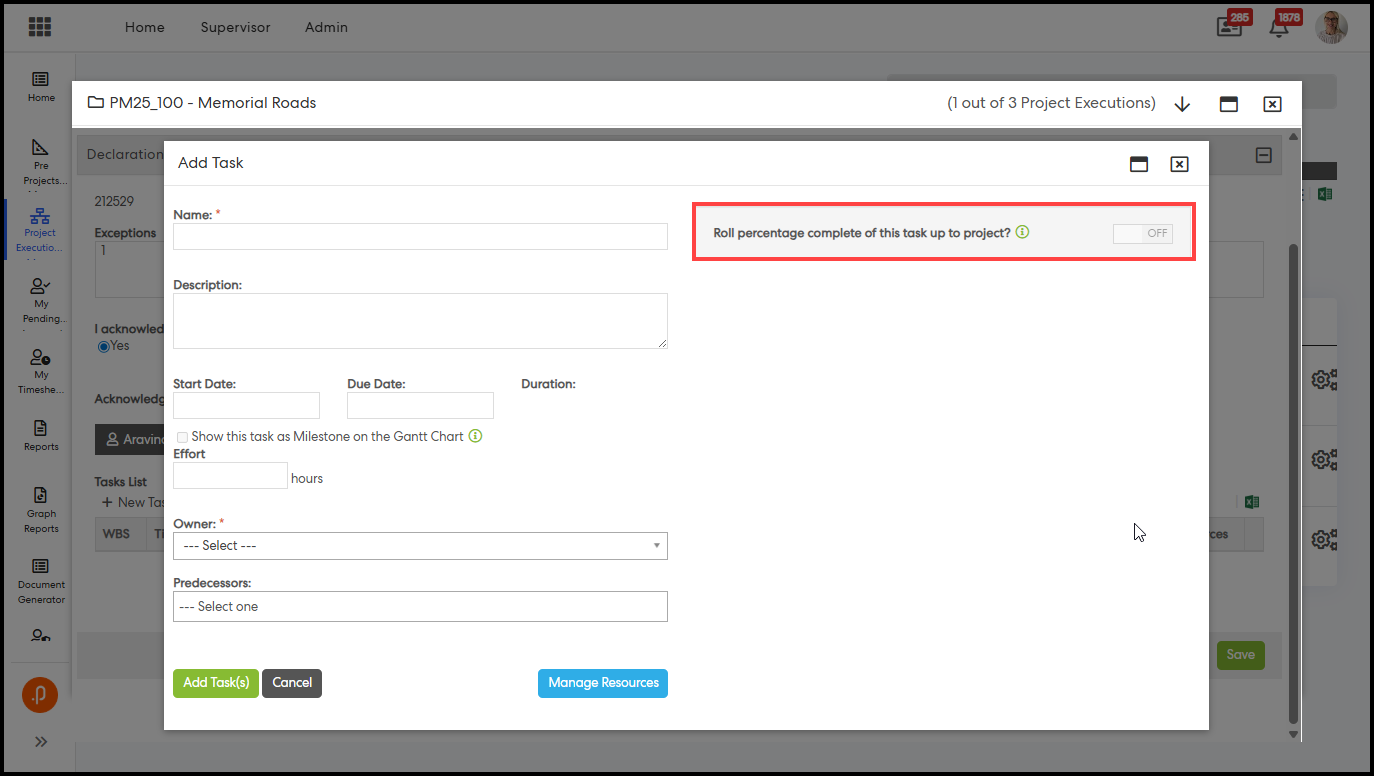
- Task roll-up to project is disabled on parent projects with 100% weighting — it cannot be switched on while child roll-up is active.
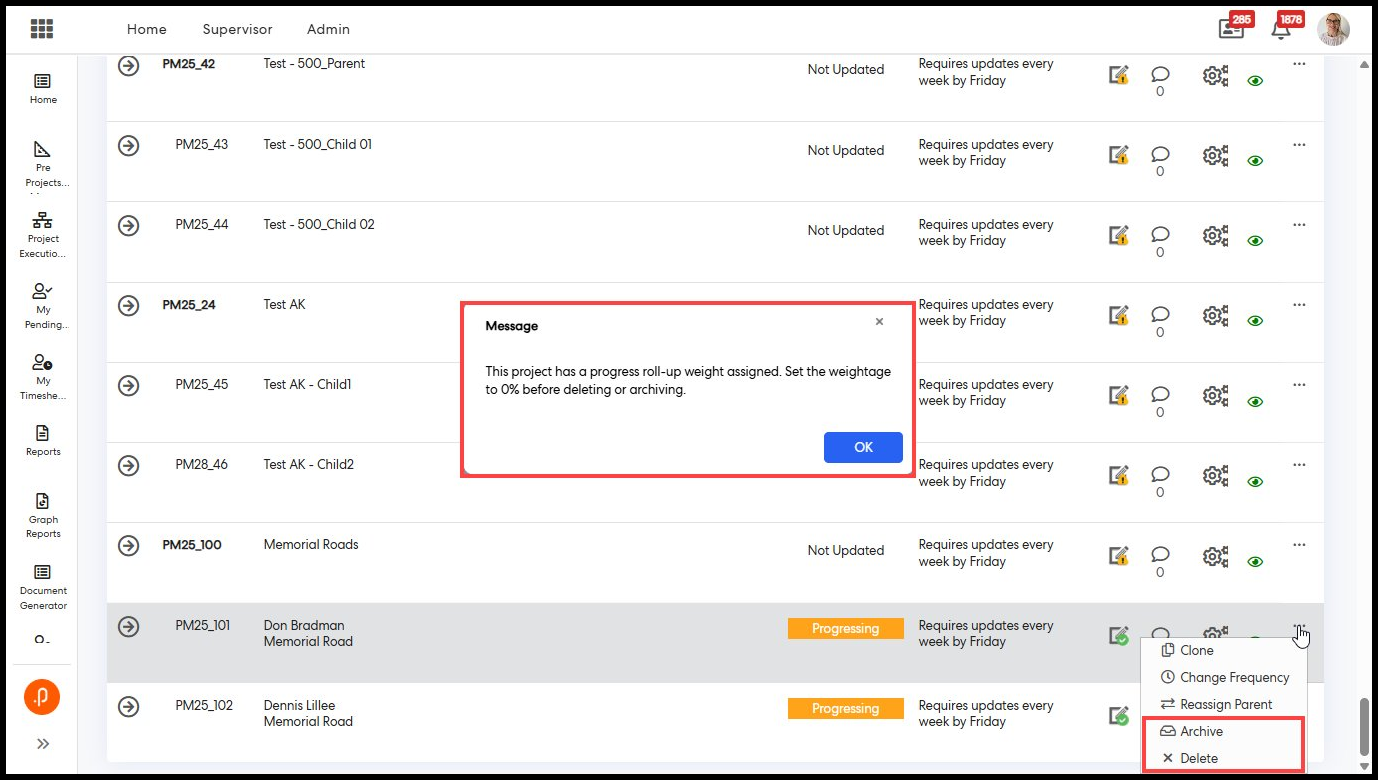
- Deleting or archiving a child project with a weighting above 0% is blocked. Reset its weightage to 0% on the setup page first.
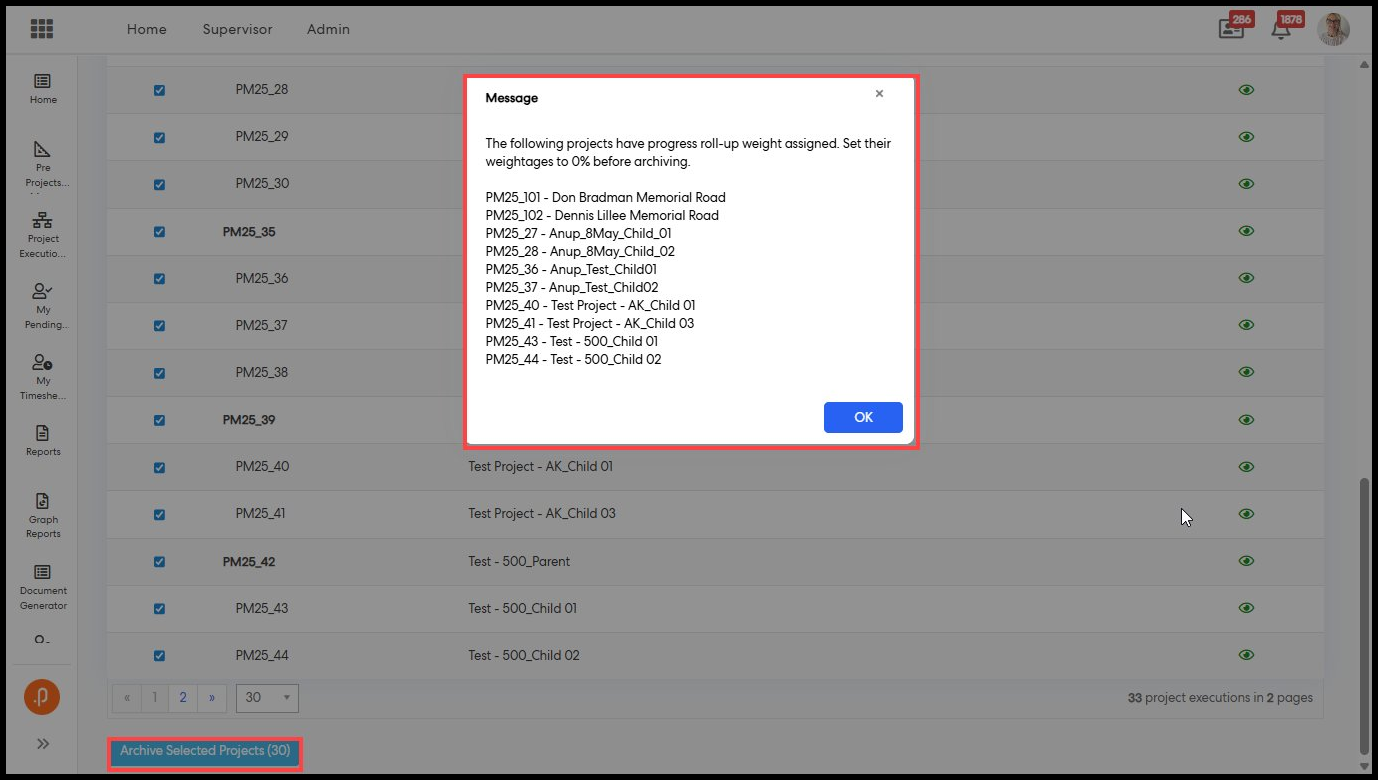
- Bulk archiving is also blocked for any selected projects with non-zero child weightings.
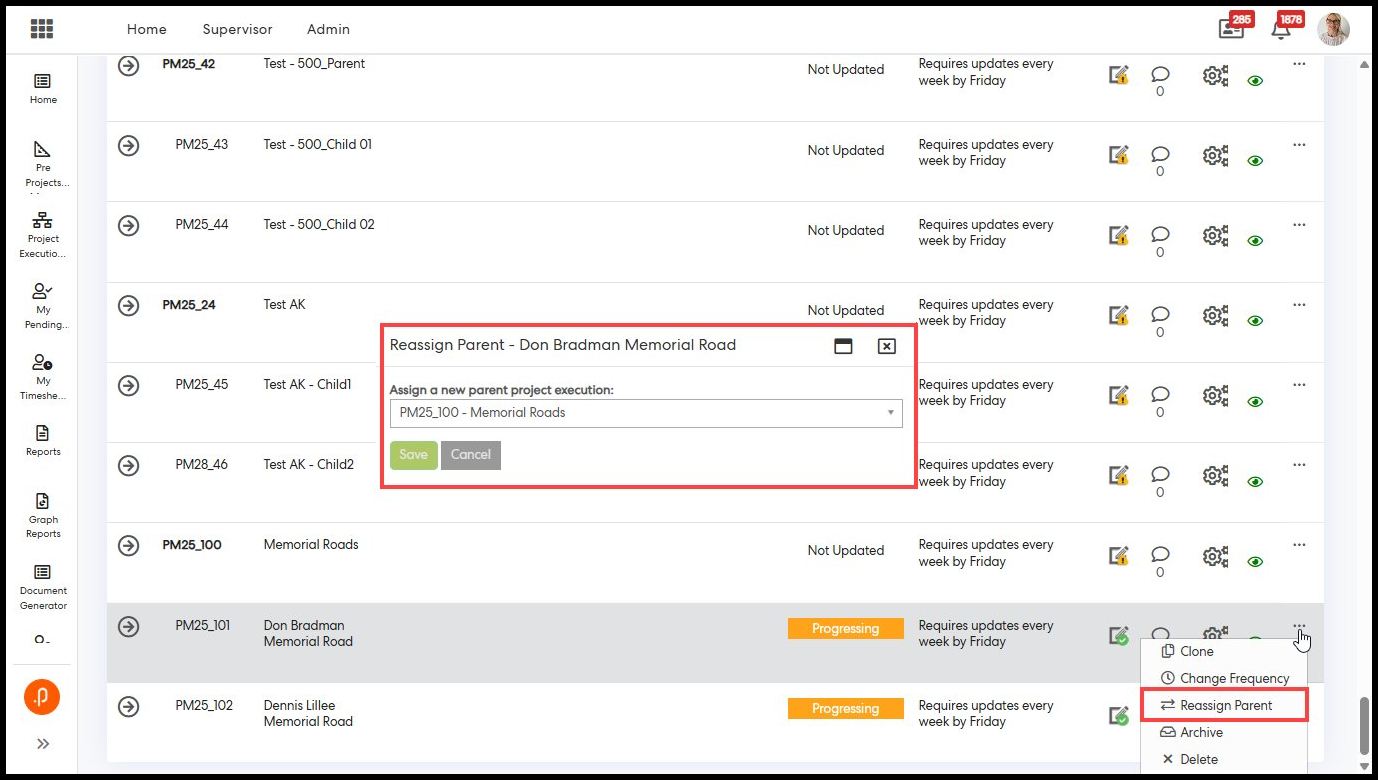
- Reassigning a parent or child project is prevented when non-zero weightings exist. Reset weightages to 0% before reassigning.
- Newly added or unarchived child projects appear on the setup page with a default weighting of 0%.
Tracking Weighting Changes
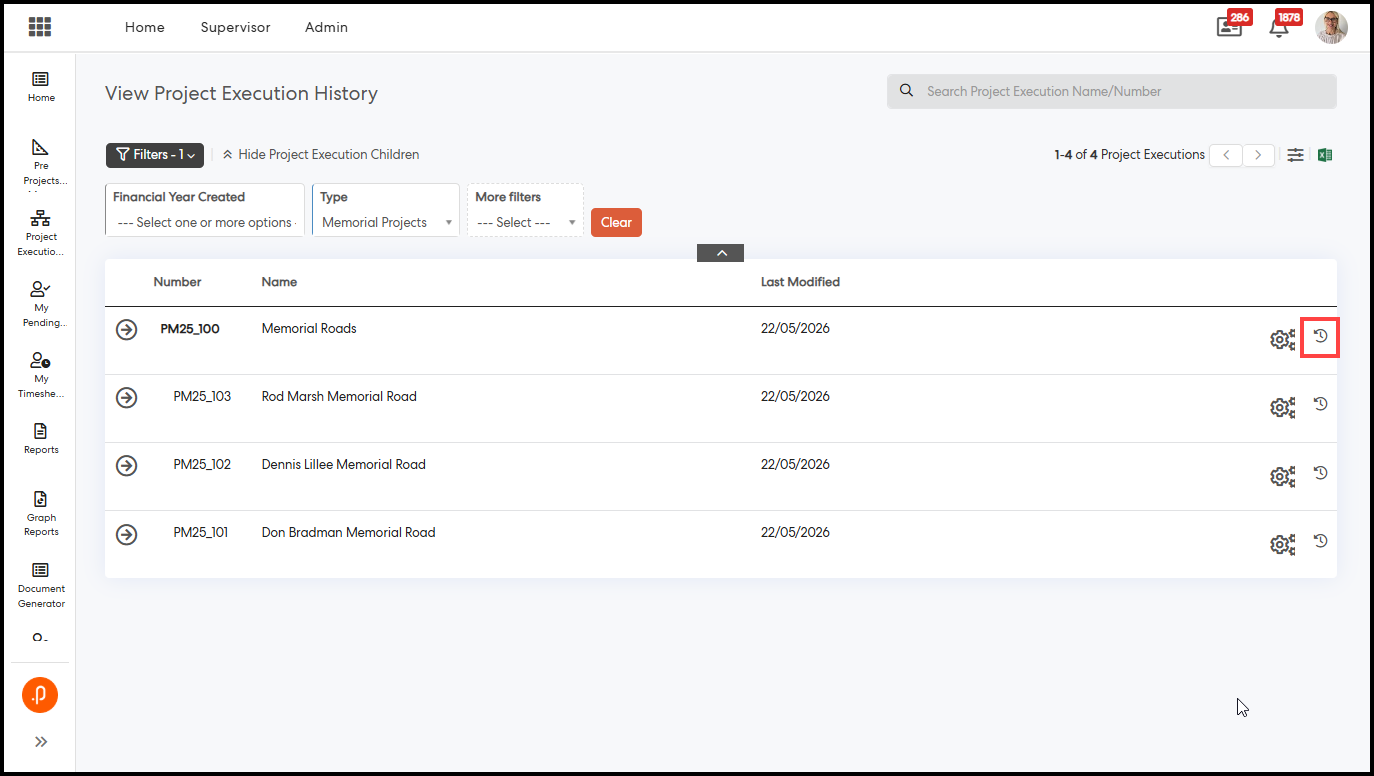
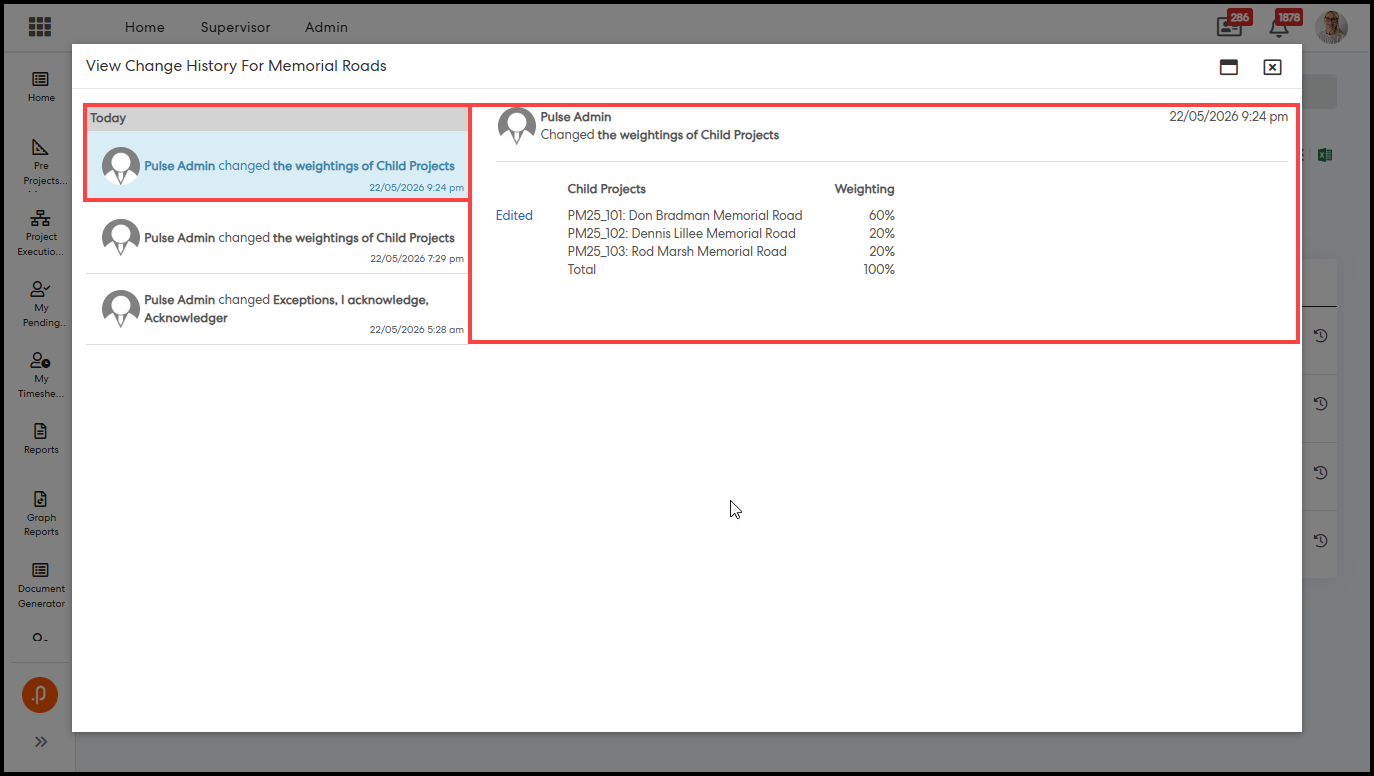
All weighting changes are recorded in the project's change history.
- Navigate to Project Executions > View Project Execution History and open the View History icon for the relevant project.
- Each record shows the child project name and number, weighting applied, total weighting, timestamp, and the user who made the change.
2. Performance Reporting Framework Module
2.1 Standardised CPI Filters Across All CPI Report Types in Document GeneratorCPI report types in the PRF Document Generator now support a consistent and complete set of filters across all report types. Previously, filter availability varied between reports, requiring users to switch between report types, maintain multiple templates, or export data manually to apply the filtering they needed. This enhancement standardises the filter set across all five CPI reports, reducing manual rework and delivering a more predictable reporting experience for governance and performance oversight.
Changes by Report Type
The sections below detail the specific filter updates applied to each CPI report type.
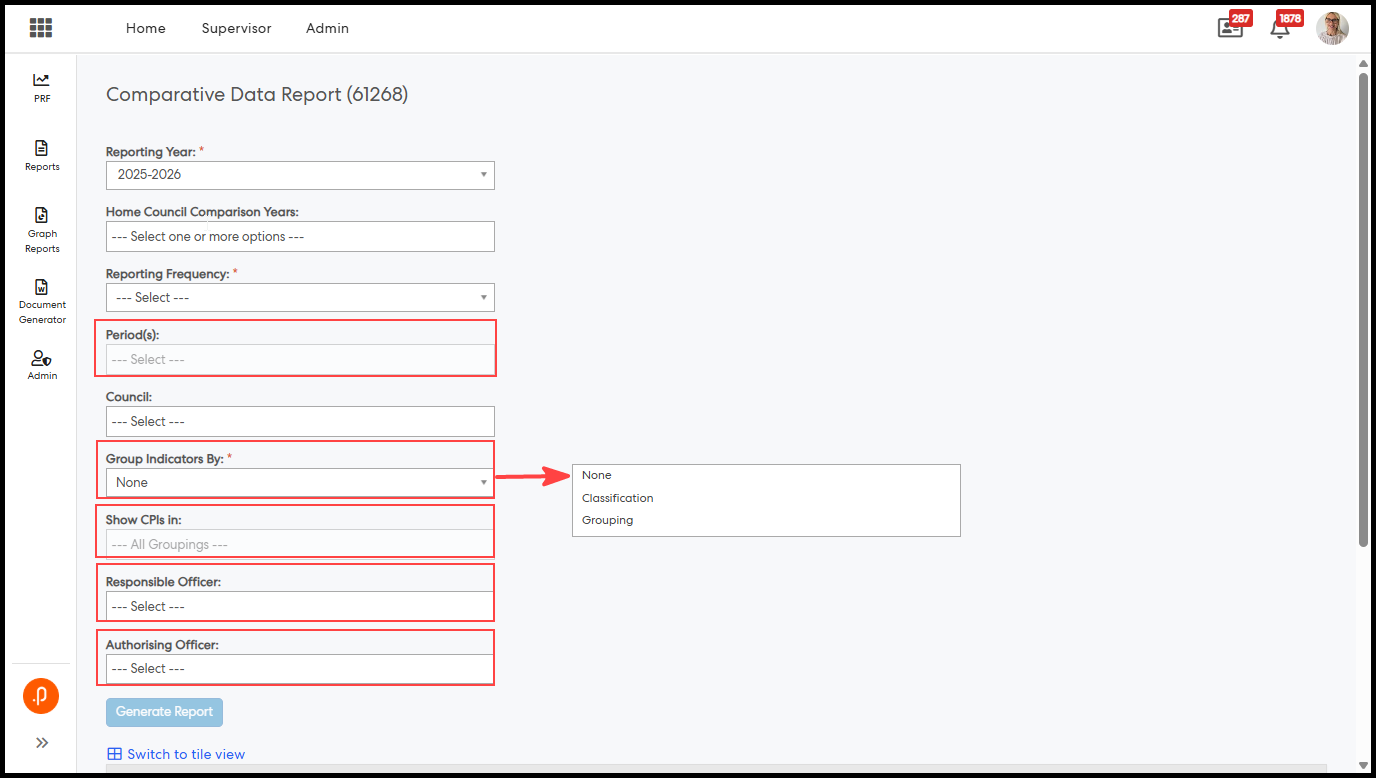
1. Comparative Data Report
- Period relabelled: 'Period' has been renamed to 'Period(s)'.
- Classification replaced: The existing Classification filter has been replaced with Group Indicators By.
- New filters added: Show CPIs In, Responsible Officer, and Authorising Officer.
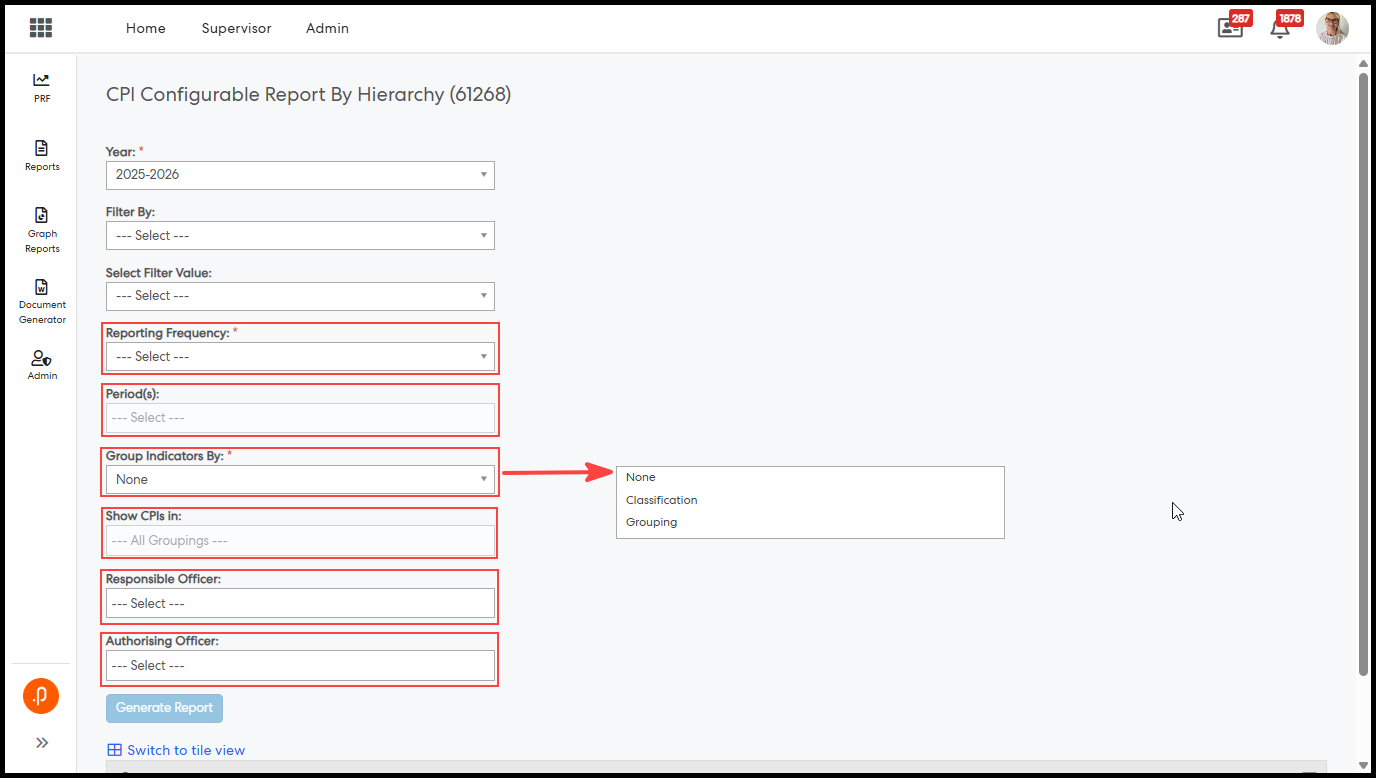
2. CPI Configurable Report By Hierarchy
- Period relabelled: 'CPI Reporting Period/s' has been renamed to 'Period(s)'.
- Reporting Frequency added: New single-select filter; drives dynamic Period(s) population.
- Period(s) updated: Now multi-select with dynamic values based on selected frequency.
- New filters added: Group Indicators By, Show CPIs In, Responsible Officer, and Authorising Officer.
3. CPI Configurable Report
- Period relabelled: 'CPI Reporting Period/s' has been renamed to 'Period(s)'.
- Reporting Frequency added: New single-select filter; drives dynamic Period(s) population.
- Period(s) updated: Now multi-select with dynamic values based on selected frequency.
- New filters added: Responsible Officer and Authorising Officer.
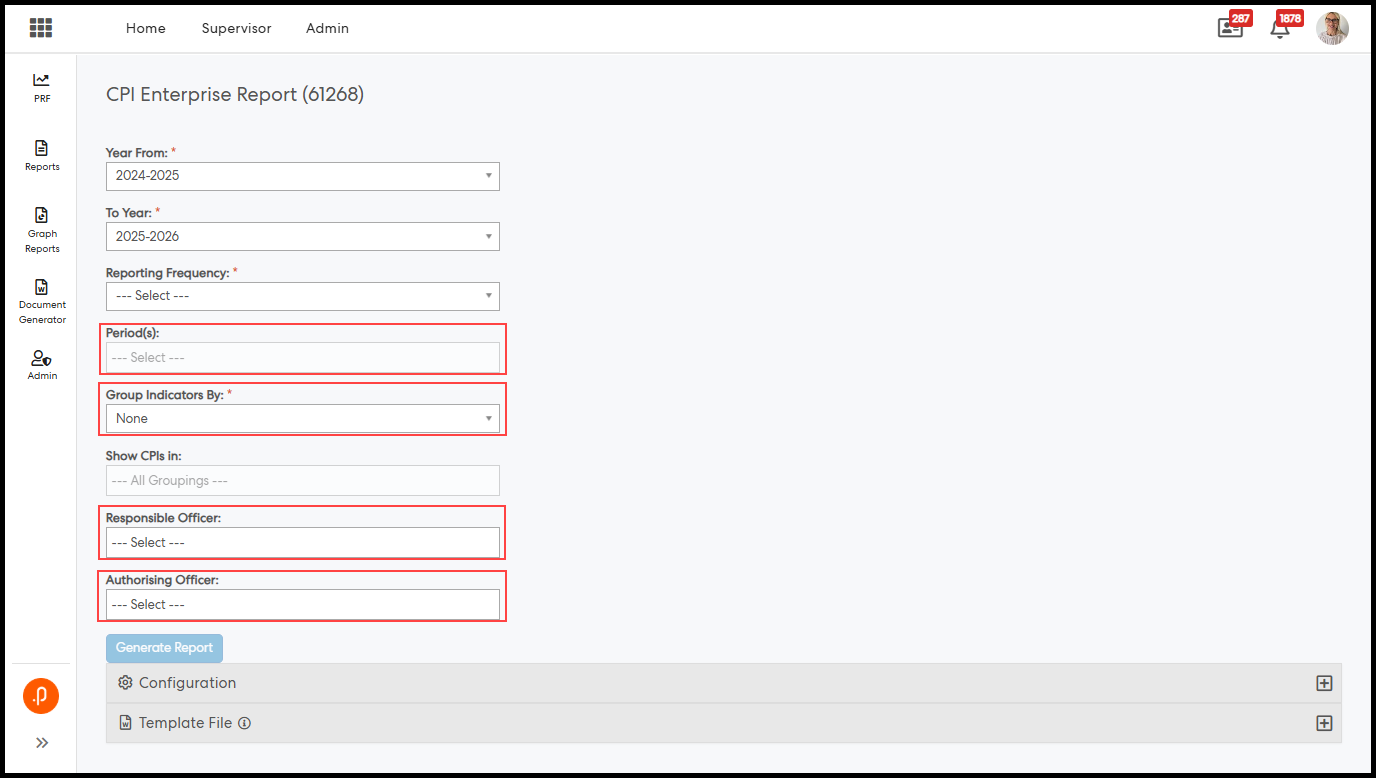
4. CPI Enterprise Report
- Period(s) default label updated: Default placeholder changed from '---All Periods---' to '---Select---'.
- None option added: 'None' has been added to the existing Group Indicators By filter.
- New filters added: Responsible Officer and Authorising Officer.
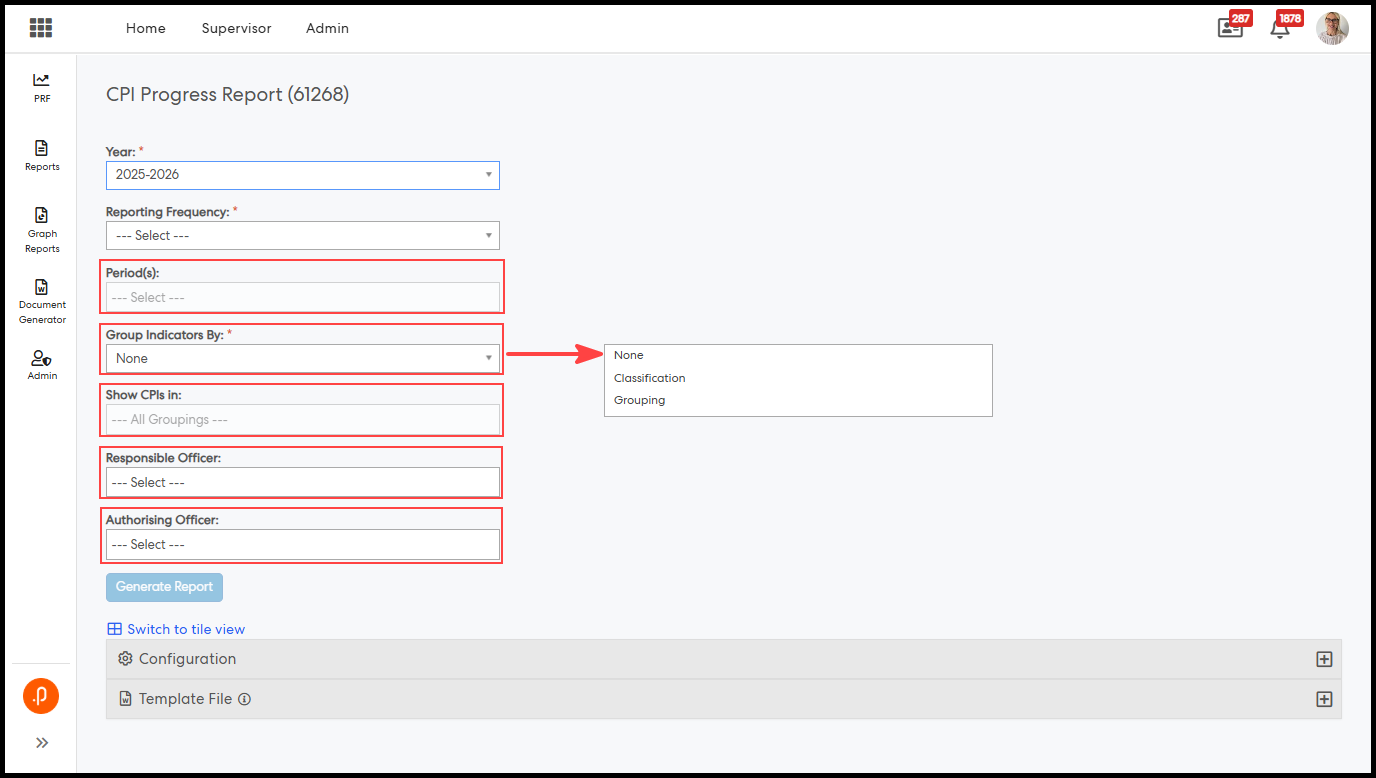
5. CPI Progress Report
- Start Period relabelled and updated: 'Start Period' has been renamed to 'Period(s)' and changed from single-select to multi-select with dynamic values based on selected frequency.
- End Period removed: The End Period filter has been removed. Existing saved configurations with Start Period and End Period values have been automatically migrated to Period(s).
- New filters added: Group Indicators By, Show CPIs In, Responsible Officer, and Authorising Officer.
3. Enterprise Risk Management
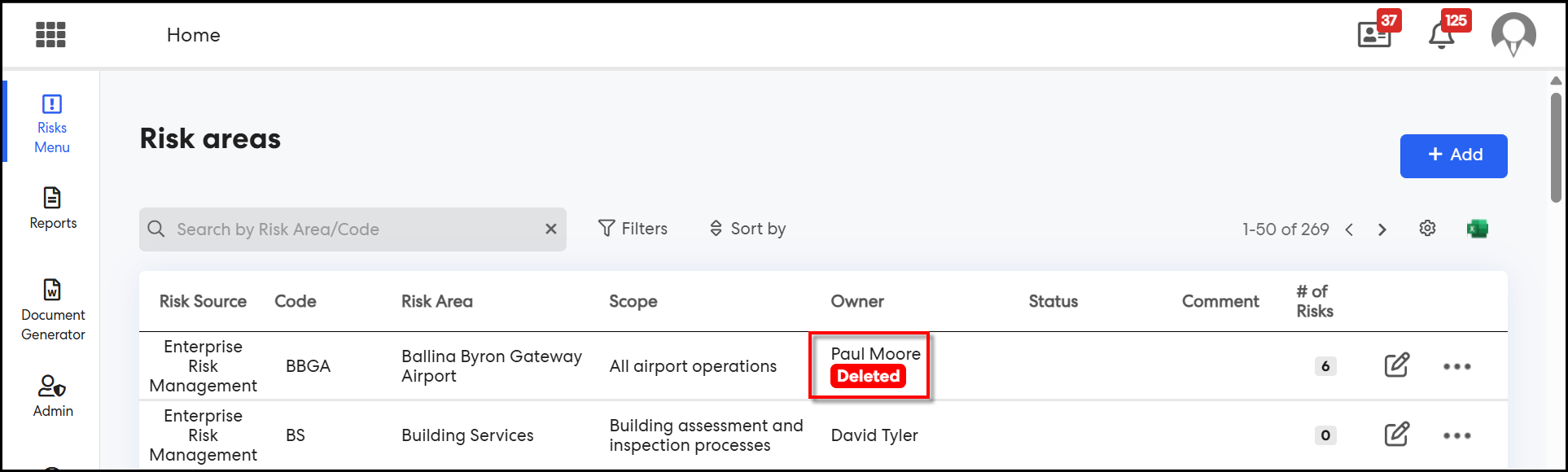
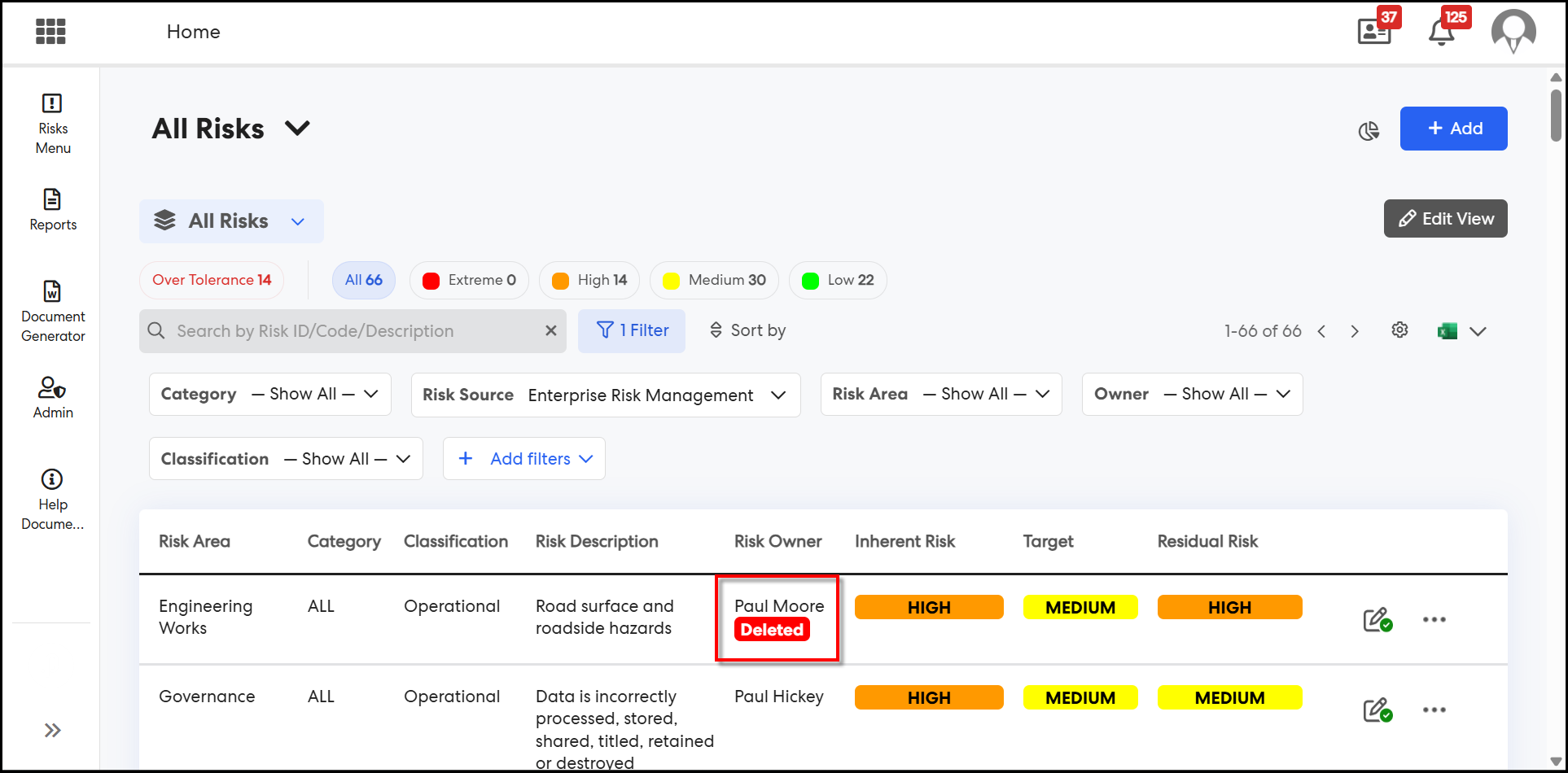
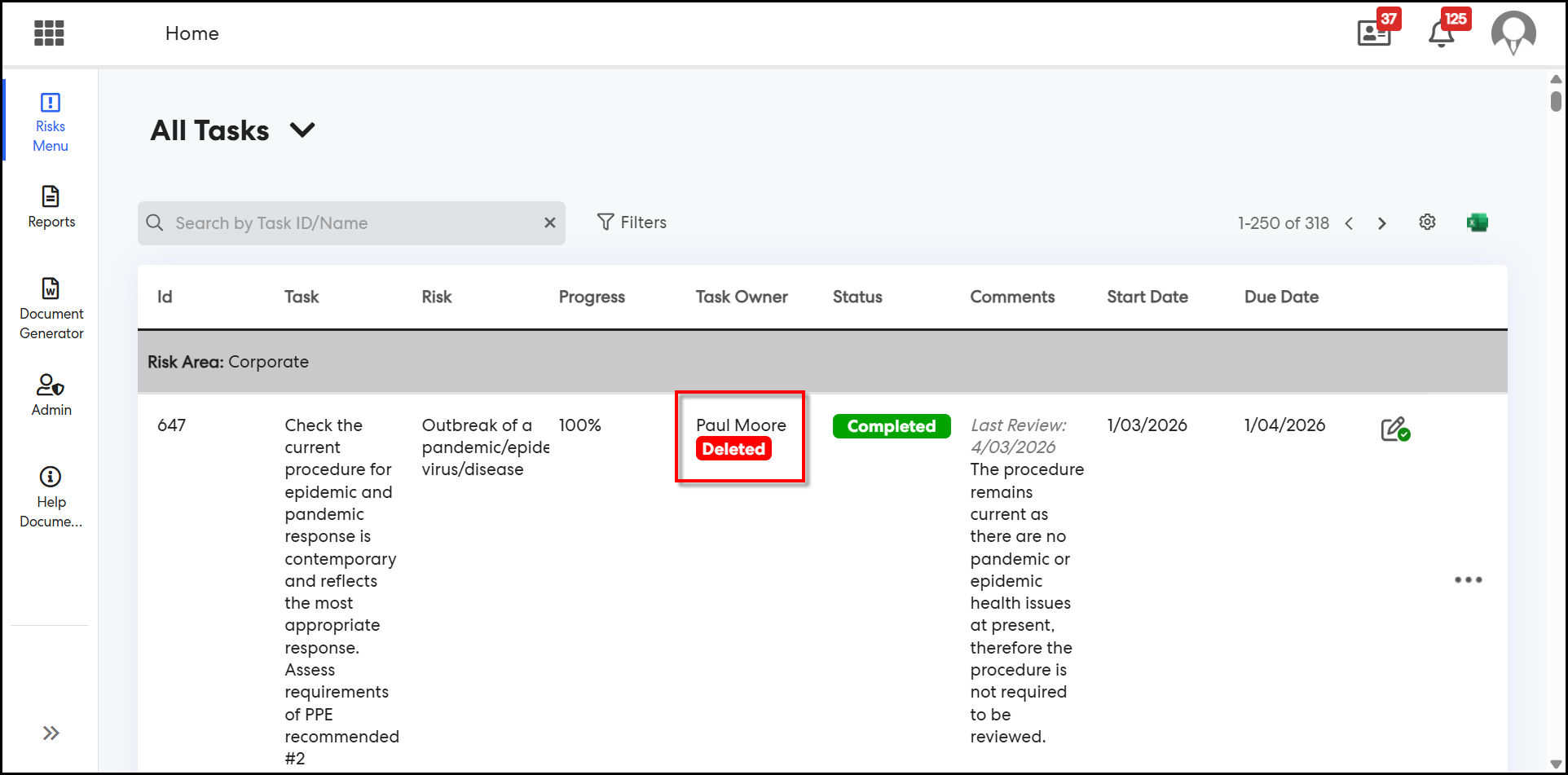
3.1 Display a 'Deleted' tag next to the user's name in the ERM module when the user account is inactiveERM users can now instantly identify records assigned to deleted users across the Risk Areas, All/MY Risks/Archived Risks, and All/My Tasks pages. A ‘Deleted’ tag is now displayed next to deleted users in the Risk Owner, Risk Area Owner, and Task Owner fields, enabling administrators to quickly identify and reassign those items to active users to ensure proper follow-up.
Where to Find the ‘Deleted’ Tag:
Step 1: Log in to the ERM module and navigate to Risk Areas from the Risks Menu. In the grid view, check the Owner column. Any risk area previously assigned to a deleted user will display a ‘Deleted’ tag next to the owner’s name.
Step 2: Navigate to All/My Risks (or All/My Archived Risks) from the Risks Menu. In the grid view, check the Risk Owner column. Risks assigned to deleted users will display the ‘Deleted’ tag. The tag also appears when opening a risk record directly via the row, Review button, or Edit Risk (Eclipse button).
Step 3: Navigate to All/My Tasks from the Risks Menu. In the grid view, check the Task Owner column. Tasks assigned to deleted users will display the ‘Deleted’ tag. The tag also appears when clicking into any task row and viewing the task details.
Note: To reassign a flagged record, click the edit icon (pencil) or the ellipsis (…) menu next to the record and select Edit. Update the owner field to an active user and save. Once reassigned, the ‘Deleted’ tag will no longer appear for that record.
Issues resolved
Corporate Planning & Reporting and Additional Hierarchies
- Fixed an issue where the 'Action, Task or KPI Update Reminder' notifications for 'Run Once' and 'Recurring' were not triggering.
- Fixed an issue where submitting changes in draft action periods was incorrectly setting the draft action status to "No Change" instead of the appropriate status based on actions taken.
- Fixed an issue where the Indicator column was not appearing in reports when both a Hierarchy Level and value filter were enabled.
- Fixed a null reference error that occurred when accessing the All Draft Actions page.
- Fixed an issue where the CPM tab was not displayed on the My Team's Actions page for some users.
Performance Reporting Framework
- Fixed an issue where period targets on existing KPIs could not be modified on the live site.
Onboarding
- Fixed an issue where the 'Finish' button was unclickable when enrolling a user in an Onboarding portal.
HR Core
- Fixed an issue where uploading a .msg file to a document was incorrectly triggering a .pdf conversion.
eRecruitment
- Fixed an issue where downloading an offer document appended "%2b" in place of spaces in the file name.
eLearning
- Fixed an issue where cloning a training session caused the Duration to display incorrectly on the Edit Session Period screen.
- Fixed an issue where the 'New Accreditation is Added/Renewed - Notify Admin' notification was triggered when administrators added or renewed their own accreditation.
Enterprise Risk Management
- Fixed an issue where administrators were able to delete users who still had risks assigned to them.
Delegation & Policies Register
- Fixed an issue where the 'Notify Users In Position Assigned New Policy' notification was not triggered when a position was added or when a policy was updated and saved.
Employee Performance Management
- Fixed an issue where appraisal progress was displayed even when responses were not configured to be used in the appraisal process.
- Fixed an issue where the number of draft goals was incorrectly limited to four instead of the configured maximum, and goal limit validation was not applied during the Set phase.