Contents
1. Corporate Planning & Reporting Module
1.1 Bulk Action Updater – Extended Attribute SupportThe Bulk Action Updater has been enhanced to support all action attributes available on the Action Add/Edit screen, allowing administrators to efficiently update multiple actions without editing them individually.
What’s Changed:
The following action attributes, grouped by attribute type, are now supported in bulk updates across CPR, CPR (AH), Audit, and Compliance modules:
Checkbox Attributes:
- Reportable
- Locations
Lookup Attributes:
- Reporting Frequency
- QBL Alignment (CPR Main only)
- Team (CPR Main only)
- Action Approval Officer Levels
Multi-Lookup Attributes:
- Recommendation(s) (Audit only)
Date Attributes:
- Start Date
- Due Date
- Adjusted Due Date
- Completed Date
Rich Text / HTML Attribute:
- Source Document
Radio Button Attribute:
- Classification (CPR Main only)
Access and Navigation:
Common Entry Steps (All Attribute Types)
Step 1: Log in as an Admin user and navigate to Admin > Bulk Operations > Bulk Action Update
Step 2: From the Attribute To Update dropdown, select the required system attribute.
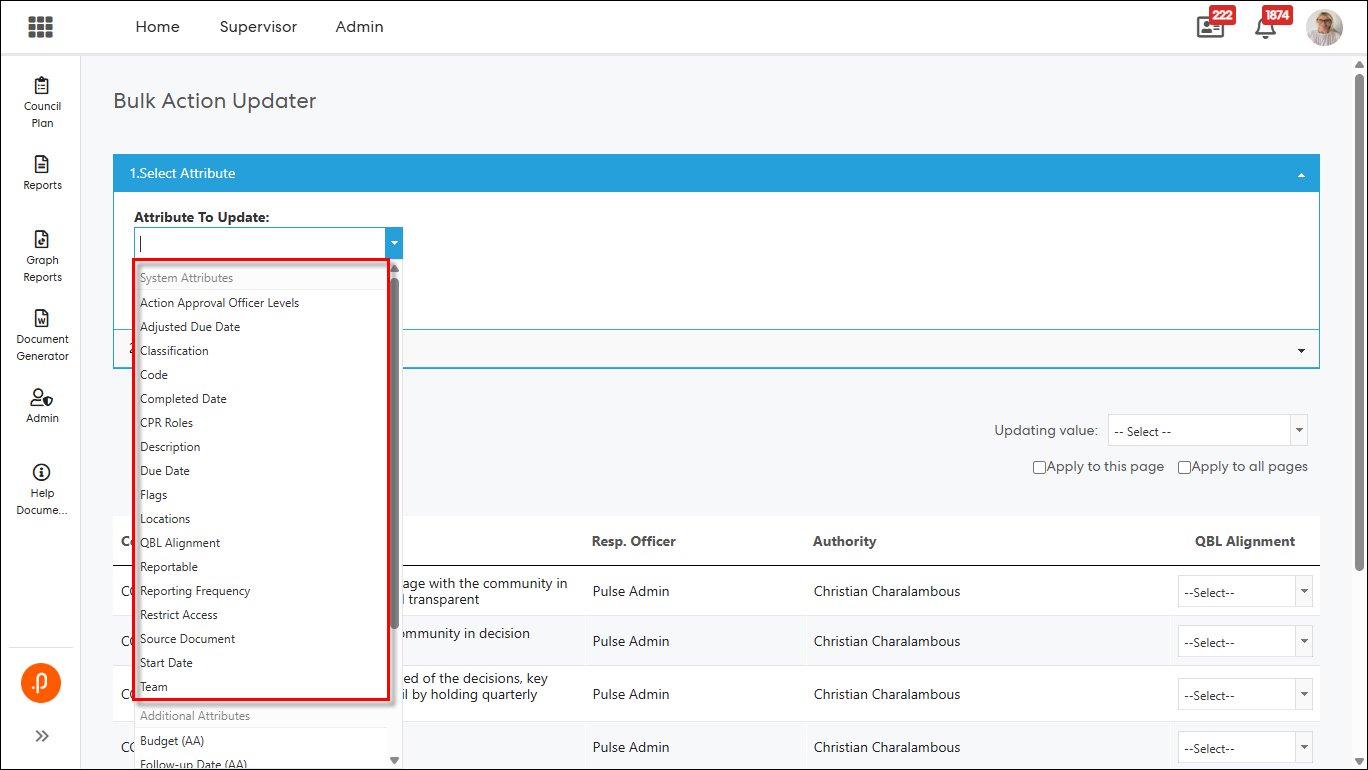
The list displays all Action Add/Edit attributes in alphabetical order.
Step 3: Select the relevant Reporting Year and apply optional Hierarchy Level and Hierarchy Node filters if required.
Step 4: Click Load to display applicable actions in the grid.
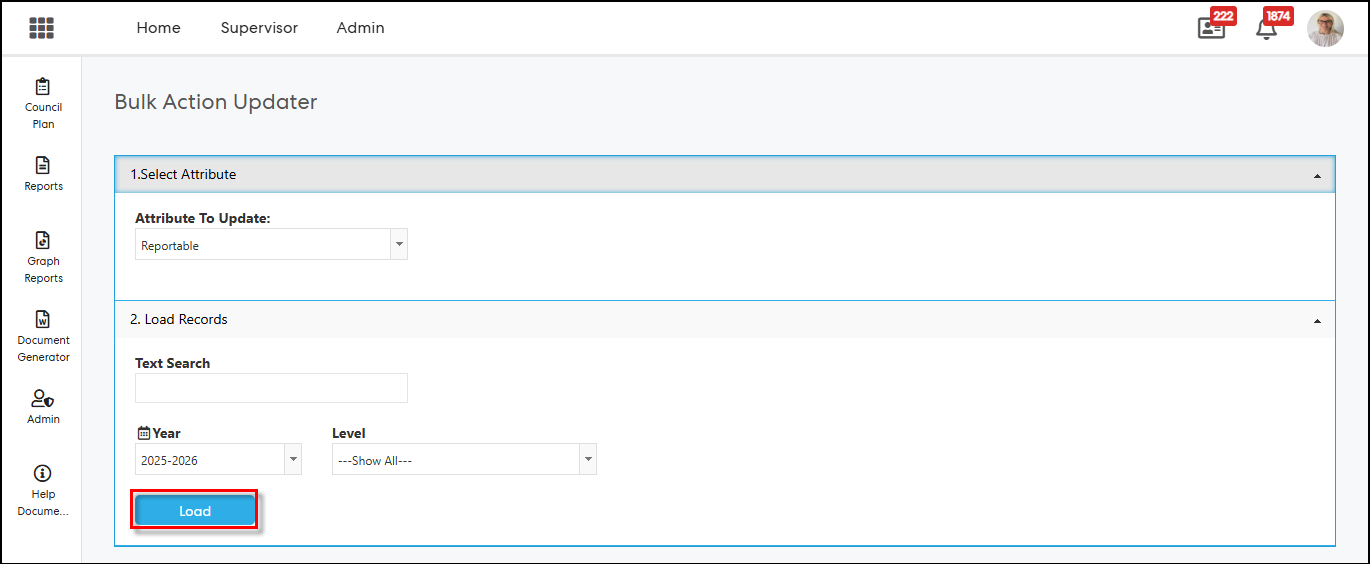
A new column appears corresponding to the selected attribute.
Checkbox Attributes (Reportable, Locations)
Step 5: Use the checkbox provided in each row to check or uncheck the value.
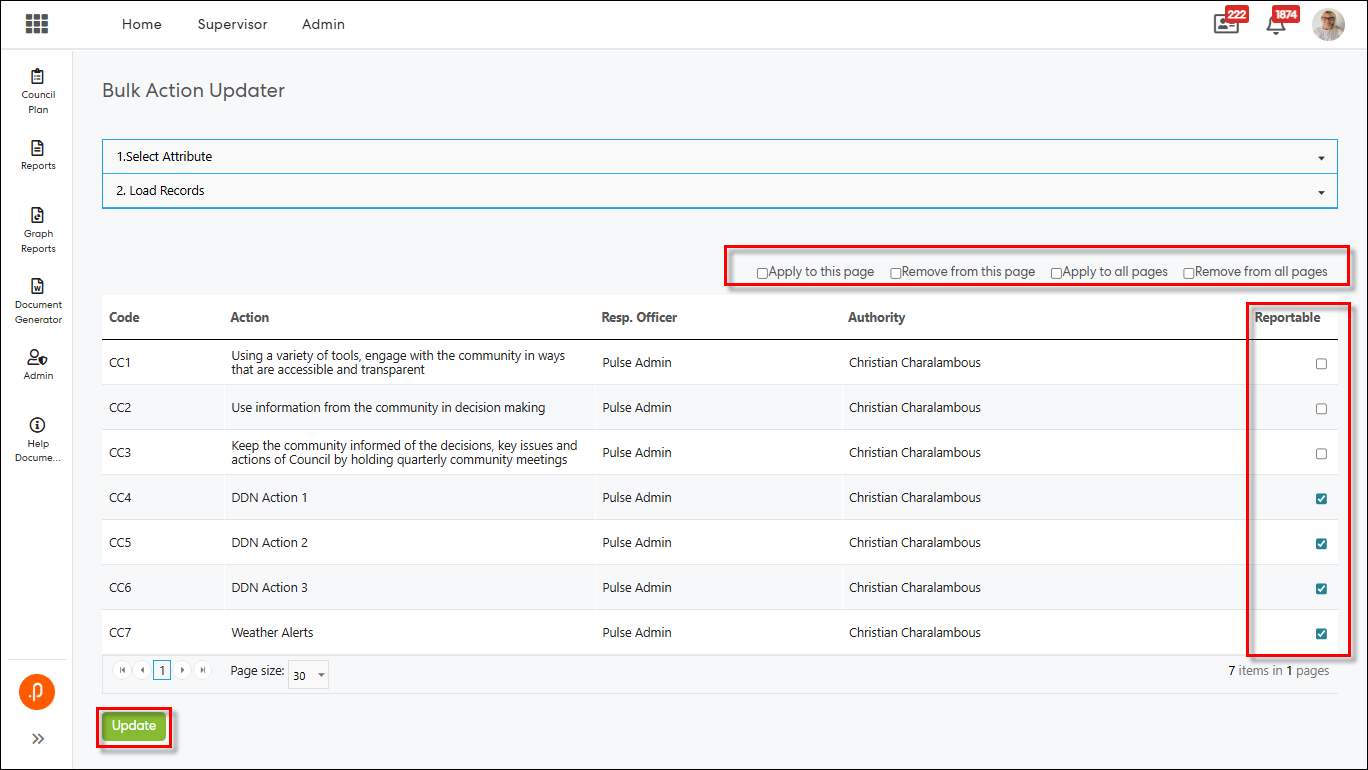
Step 6: Use the available bulk options above the grid:
- Apply to this page
- Remove from this page
- Apply to all pages
- Remove from all pages
Changes are saved when Update is clicked.
Note: For Locations, users must select a value from the secondary dropdown that appears next to the attribute before proceeding to Steps 5 and 6.
Lookup & Multi-Lookup Attributes
(Reporting Frequency, QBL Alignment, Team, Action Approval Officer Levels, Recommendation(s))
Step 5: Use the dropdown control in each row to select the required value(s).
Existing values are preloaded automatically.
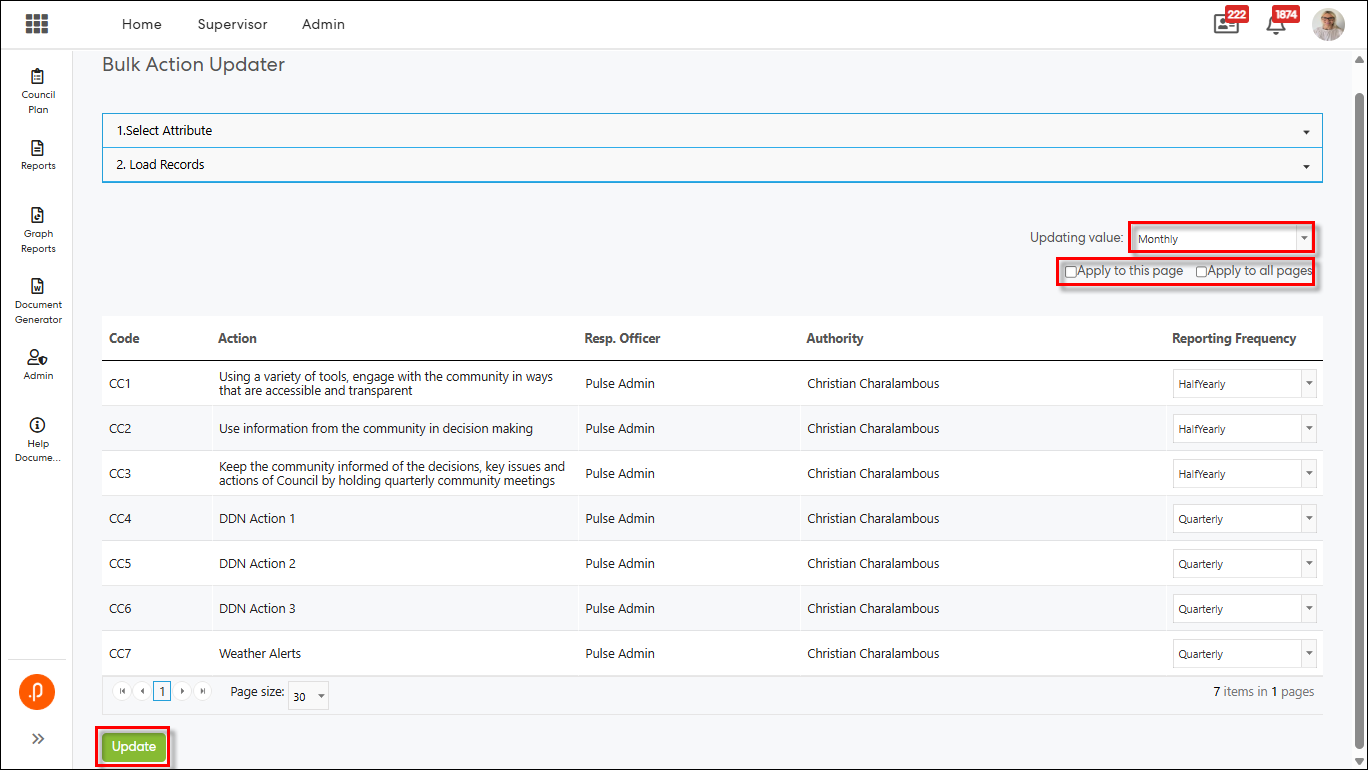
Step 6: Use the top controller to apply values in bulk:
- Apply to this page
- Apply to all pages
Notes:
For Action Approval Officer Levels, users must select a value from the secondary dropdown that appears next to the attribute before proceeding to Steps 5 and 6.
Recommendation(s) (Audit only) supports:
- Bulk Add – This Page
- Bulk Remove – This Page
Select one or more values before using Bulk Add/Remove.
Date Attributes
(Start Date, Due Date, Adjusted Due Date, Completed Date)
Step 5: Select a date using the date picker provided in each row.
Previously saved dates are preloaded.
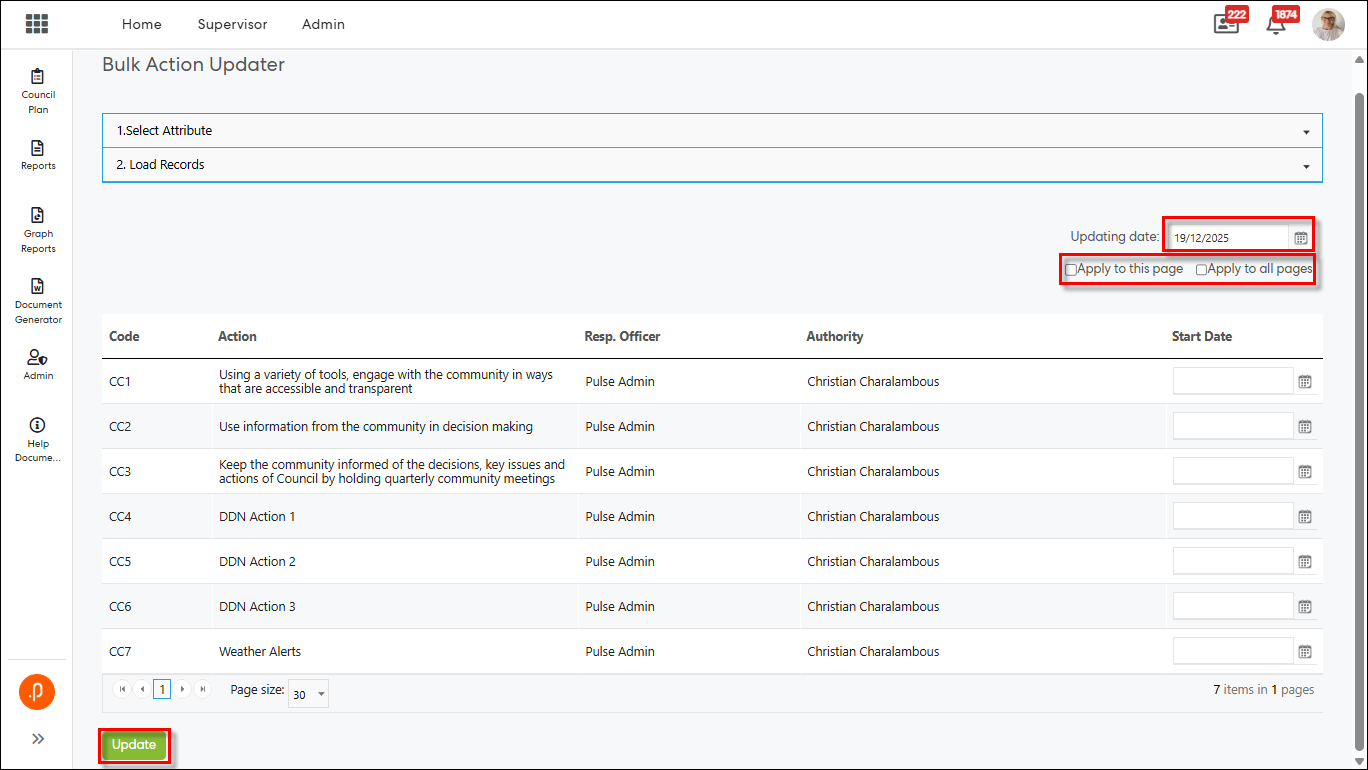
Step 6: Use the top controller date picker to apply the selected date to:
- This page
- All pages
Invalid dates are blocked with inline validation messages.
Rich Text / HTML Attribute
(Source Document)
Step 5: Enter or edit content using the single-line input field.
Existing formatted content is displayed and preserved.
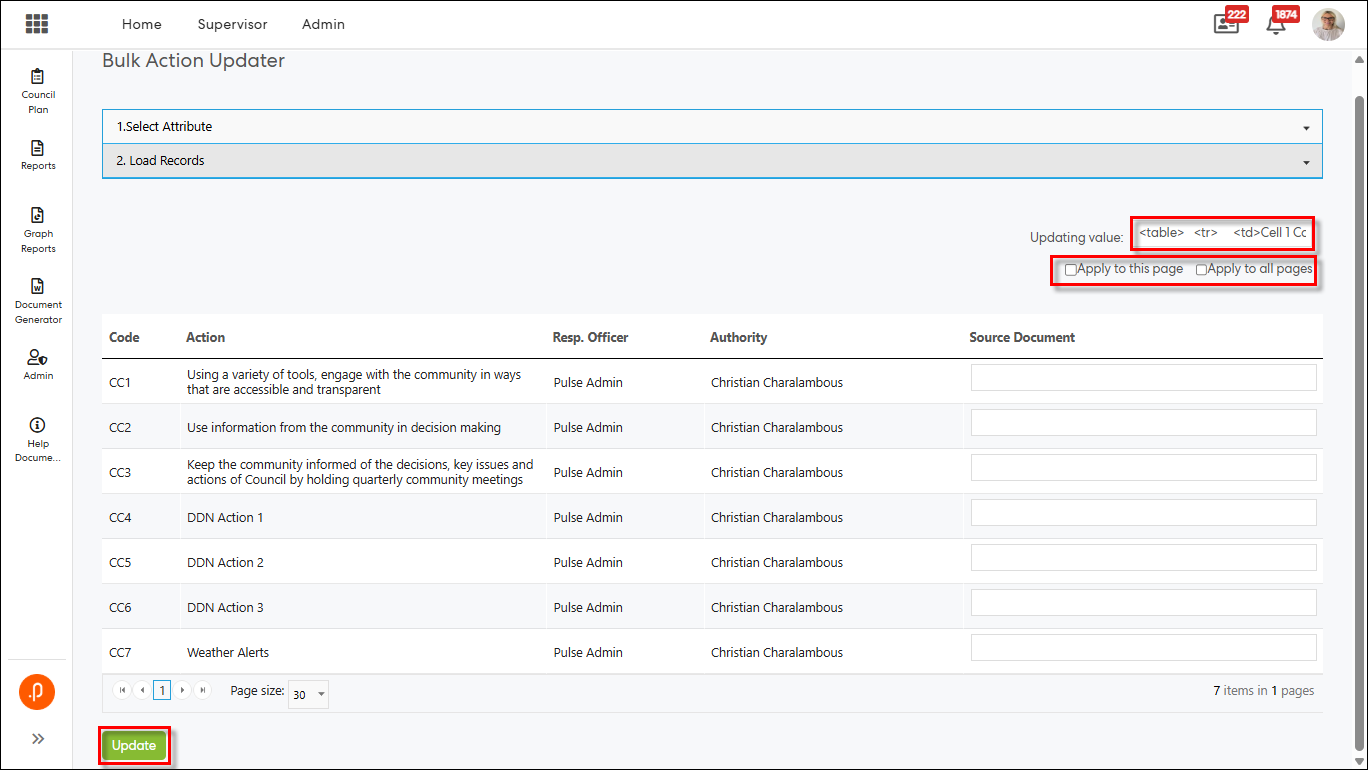
Step 6: Use the top controller input to apply content in bulk to:
- This page
- All pages
Note: Plain text is automatically converted to HTML. Formatting is retained on save.
Radio Button Attribute
(Classification – CPR Main only)
Step 5: Select one option from the radio button group displayed per row.
Previously selected values are preselected.
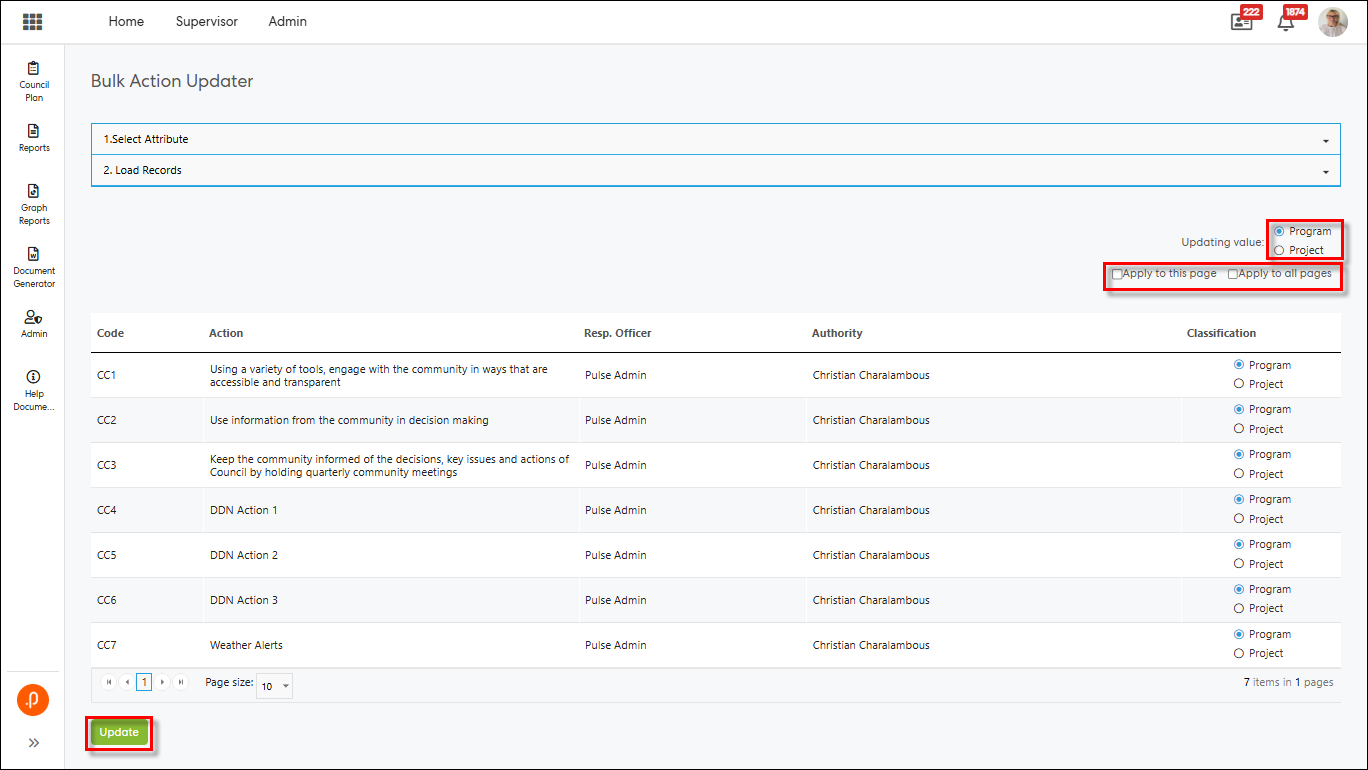
Step 6: Use the top controller to apply the selected classification to:
- This page
- All pages
Saving Updates (All Attribute Types)
Step 7: Click Update to save changes.
A confirmation message is displayed showing the number of actions successfully updated.
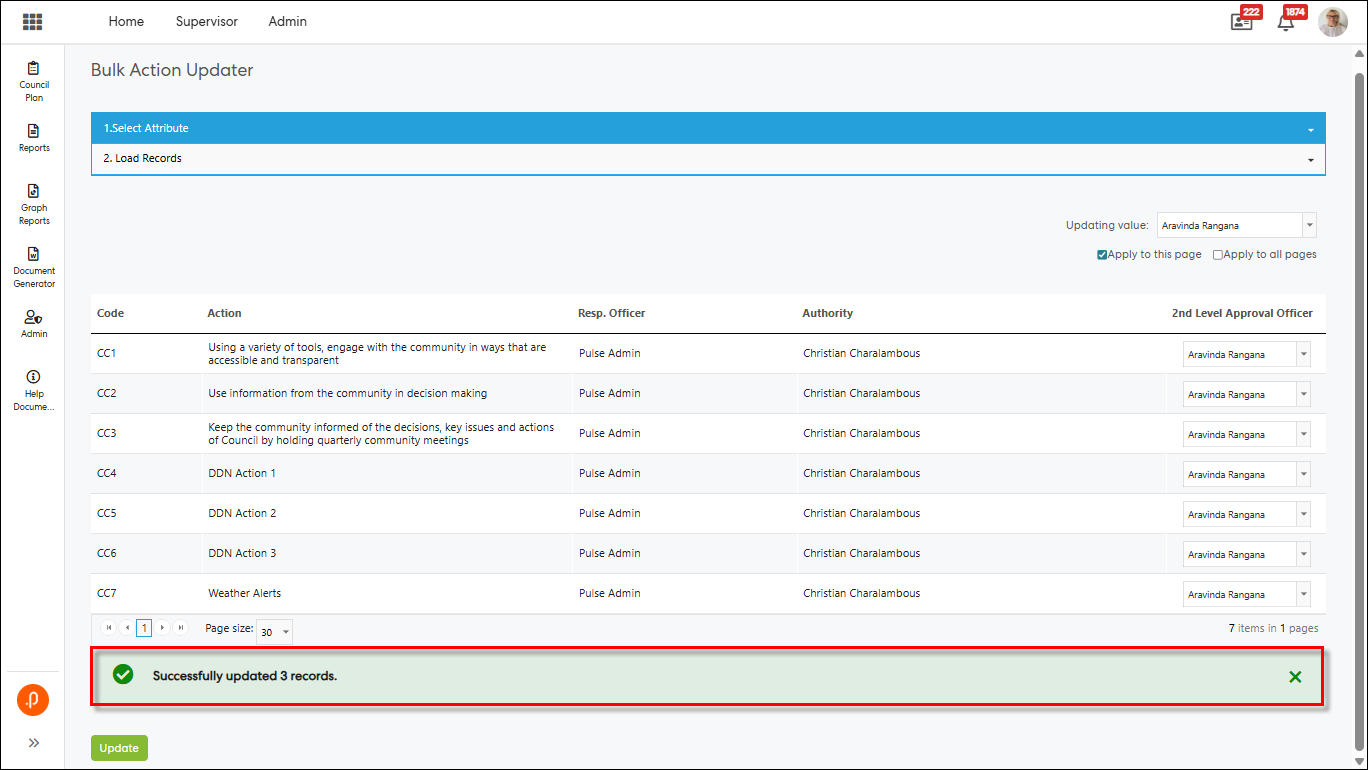
All updates are immediately reflected across the system, including reports, exports, and action views.
1.2 Task Assignment, Unassignment, and Deletion NotificationsThe Corporate Reporting (CPR, CPR-AH, Audit & Compliance) modules now support automated task-related notifications, ensuring officers are promptly informed when tasks are assigned, unassigned, or deleted.
This enhancement improves visibility, accountability, and clarity of responsibility across task management workflows.
What’s Changed:
- Three new system-triggered notifications are now available:
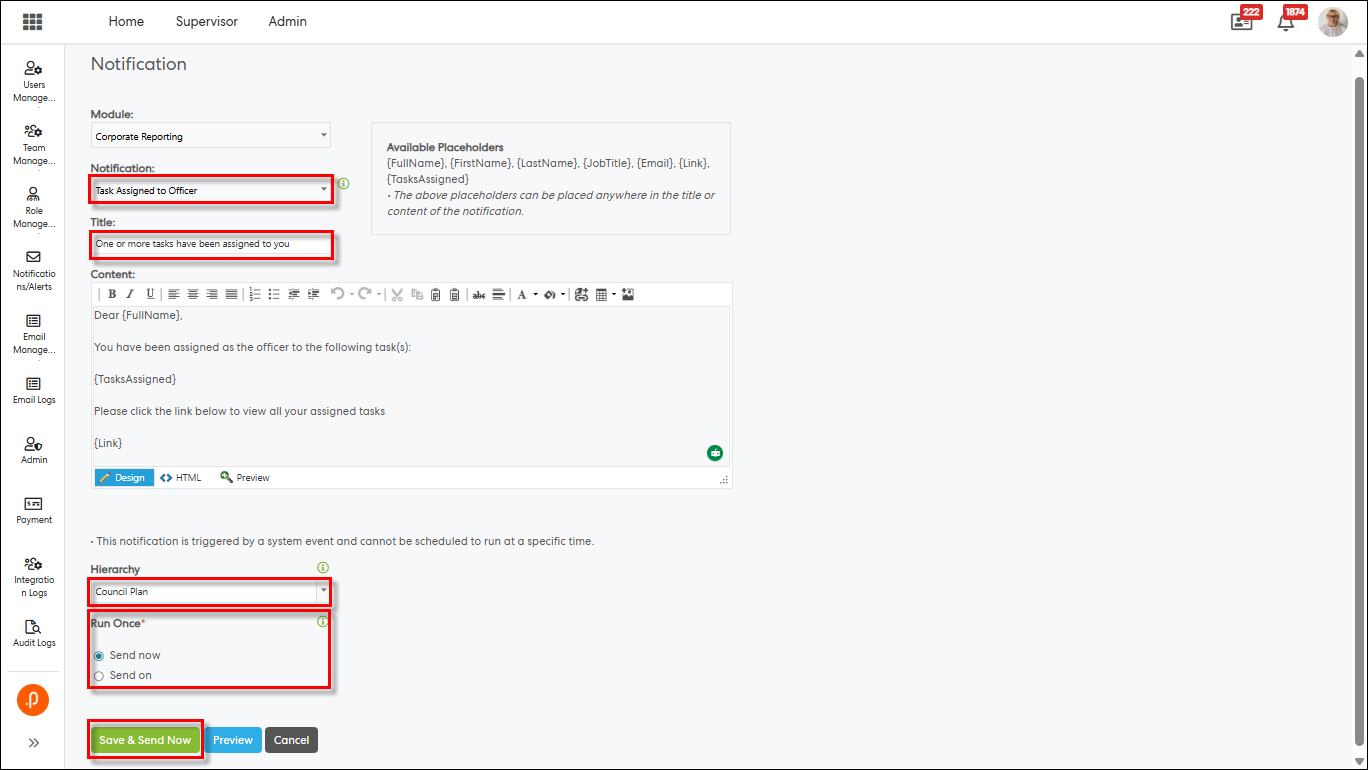
Task Assigned Notification
- Notifies officers when they are newly assigned as Primary or Additional Officers to one or more tasks.
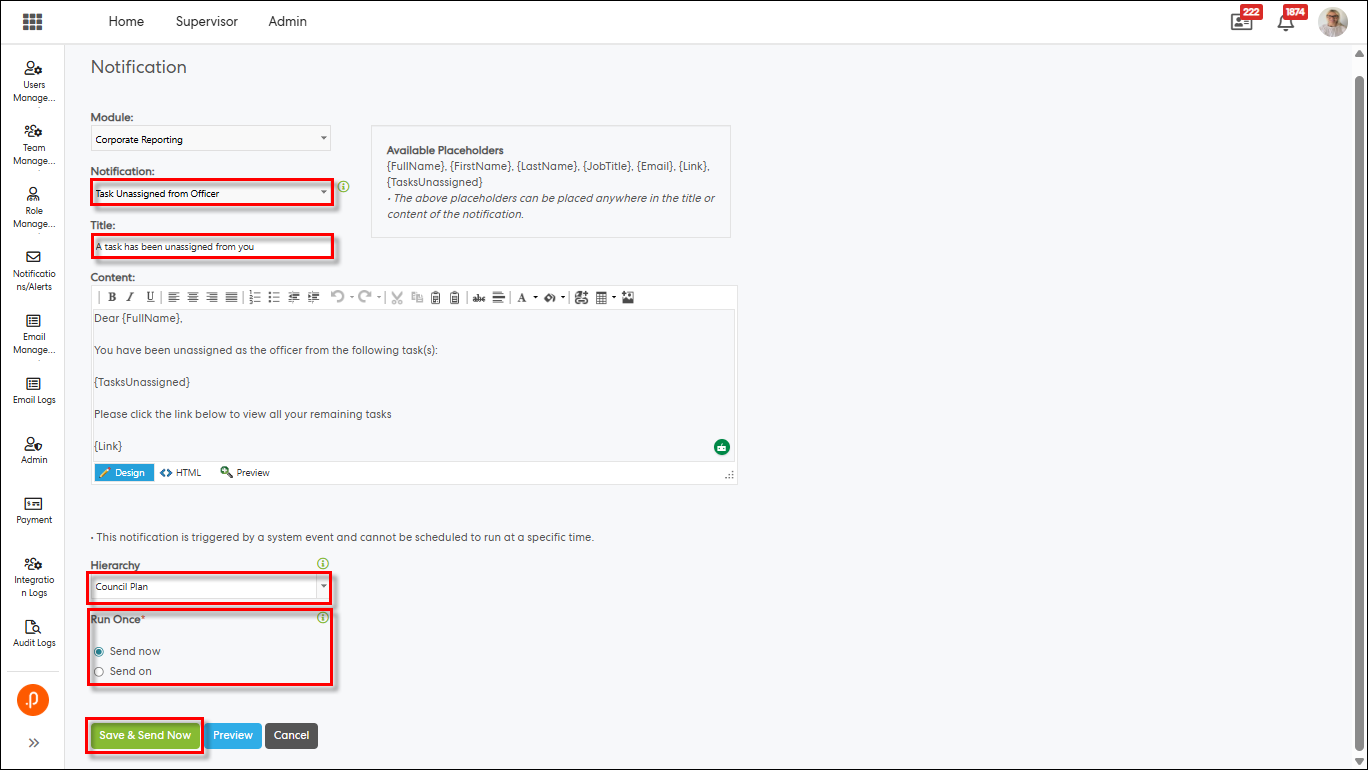
Task Unassigned Notification
- Notifies officers when they are removed as Primary or Additional Officers from one or more tasks.
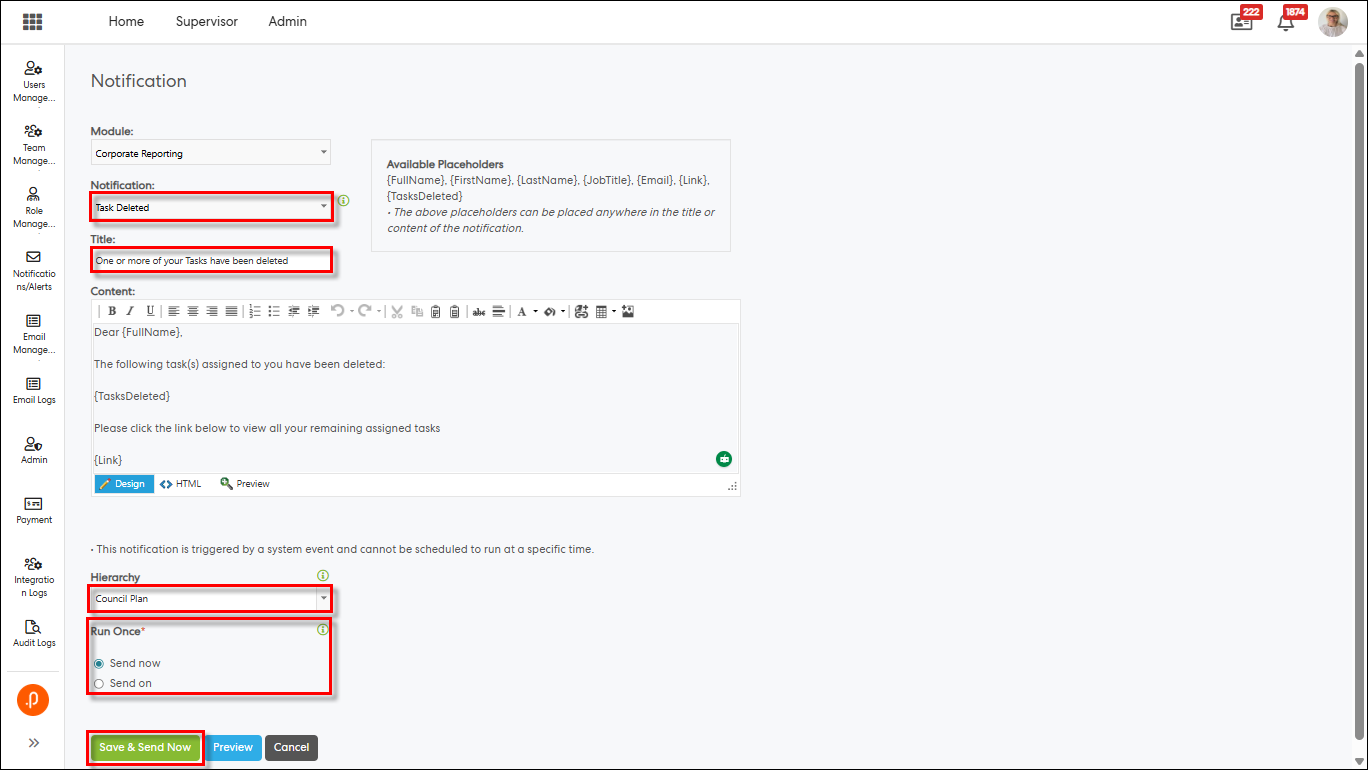
Task Deleted Notification
- Notifies officers when tasks they were responsible for are deleted from the system.
Each notification is triggered automatically based on task lifecycle events and supports multiple-task aggregation into a single notification.
Access and Navigation
Step 1: Log in as an Admin user and navigate to either:
- Pulse Security > Notifications/Alerts > Manage Notifications, or
- CPR / CPR AH > Admin > System > Manage Notifications
Step 2: Click + Add a new notification.
Step 3: Select:
Module: Corporate Reporting
Notification Type:
- Task Assigned to Officer, or
- Task Unassigned from Officer, or
- Task Deleted
Step 4: Configure the title, notification content, hierarchy filters, and activation options, as required.
- Task Assigned to Officer
- Task Unassigned from Officer
- Task Deleted
Use the following placeholders to customize the notification content:
- {FullName} – Full name of the officer
- {FirstName} – First name of the officer
- {LastName} – Last name of the officer
- {JobTitle} – Job title of the officer
- {Email} – Email address of the officer
- {Link} – Link to the My Actions – Tasks tab
- {TasksAssigned} – Formatted table of assigned task details (available only for Task Assigned notifications)
- {TasksUnassigned} – Formatted table of unassigned task details (available only for Task Unassigned notifications)
- {TasksDeleted} – Formatted table of deleted task details (available only for Task Deleted notifications)
Step 5: Preview and activate the notification using Send Now or Send On options.
Note: Notifications can be activated instantly using Send Now, or scheduled to run on a selected future date using Send On
2. eRecruitment Module
2.1 Offer Process UpgradeOffer Process Upgrade Completed
Thank you to everyone who worked with us to finalise active offers ahead of the upgrade - we greatly appreciate your cooperation.
For any offers that were not finalised by Close of Business yesterday - 18 Dec 2025, please note the following:
- Offers that were awaiting a candidate response remain accessible, and candidates may continue to review and accept or decline these offers as normal.
- Offers that were awaiting internal approval have been reset, and the workflow has automatically restarted. Please keep an eye out for any pending actions that may need to be completed again.
If you require any assistance or have questions regarding your offers, our Customer Support team is available and happy to help.
Issues resolved
Corporate Planning & Reporting / Additional Hierarchies
- Fixed an issue where an Additional Officer could not update progress unless the Additional Officer column was visible in the grid.
Enterprise Risk Management
- Fixed an issue where default private views were missing for some users by ensuring the migration is applied to all users.
Performance Reporting Framework
- Fixed an issue where the Organizational Performance Measures by Level report displayed only the default frequency instead of reflecting the selected reporting period.
Project Management & Control
- Fixed an issue where projects added to a portfolio from the second page were not retained as selected after saving.
eRecruitment Module
- Fixed an issue where the Send Offer button did not update correctly after an offer was sent; a page refresh is no longer required.
- Fixed an issue where modifications to existing checks by Admins were incorrectly applied to all job listings.